How to Add Animated Characters to a Game Using Makko
Walks through adding animated characters in Makko, from manifests and assets to animation states and testing.

Adding animated characters to a game is one of the most common friction points in early development. Creators generate a character they like, then discover that getting it moving and correctly rendered inside a game involves several steps that most tools leave you to figure out on your own.
Makko's Sprite Studio handles the full pipeline in one place — from character concept through animation generation, frame extraction, sprite sheet baking, and manifest building — before handing everything off to AI Studio where the character becomes playable in your game.
This guide walks through every step of that pipeline in order. By the end, your character will be animated, manifested, placed into the world, and ready to play. The whole process takes a few minutes once you know the sequence.
If you are new to how Makko handles AI character creation and sprite sheets, read that first — it explains the pipeline structure this guide builds on. For the full walkthrough in real time, the video at the bottom of this article covers every step shown here.
Step 1: Open Sprite Studio and Create a Character
Open Sprite Studio from the Makko header. In the top right, click Create Character. Give your character a name before anything else. Naming consistency matters more than it seems at this stage — your character name will appear across your manifest, your asset library, and your AI Studio project. Keeping it clear and consistent from the start saves confusion later.
Next, choose your concept art source. You have two options: generate a character from an AI prompt, or upload your own artwork. If you are prompting, be specific. Include silhouette, outfit, materials, color palette, and anything else that defines the visual direction of the character. Vague prompts produce generic results. Specific prompts give you something close to what you actually want.
Choose an art style that fits your game — pixel art, cell shade, painterly, or whatever matches your project's visual direction. Then click Generate Character Concept.
You will get four concept options. If one is close but not quite right, click the refresh icon on that specific concept to iterate on it without regenerating all four. If none of them work, adjust your description and generate again. Take the time to get this right — the concept you select becomes the visual foundation for everything that follows.
Once you have found the look you want, select it and click Generate Reference Sheet. Makko will produce a clean front, side, and back view of your character. Review it — if everything looks right, click Save Character. Your character is now ready for animation.
Step 2: Generate Animations
Go to Create Animation. Name your animation clearly — walk, idle, attack, whatever the action is — and write a description of what you want the animation to look like. The description acts as your generation prompt, so be specific about the motion, the energy level, and any visual details that matter.
Choose a background color and select whether the animation is Simple or Complex. Simple works well for looping animations like walk cycles or idle states. Complex is better suited for multi-pose actions or effect-heavy movements like attacks or special abilities. Choose based on what the animation actually needs to do, not just complexity for its own sake.
Click Generate. Makko will render a preview video of the animation. Review it before moving forward — if it is not right, adjust your description and regenerate.
Repeat this step for every animation your character needs. Each animation gets its own generation pass with its own name and description. Keep naming consistent across all animations for the same character — it will matter when you build the manifest.
Step 3: Extract Frames
Once an animation preview is ready, move to the Extract Frames panel. Set your frame rate, frame size, and confirm the background color. These settings determine how the animation is sliced into individual frames — get them right before proceeding.
Click the film strip icon to open the frame editor. This is where you clean up the animation — delete duplicate frames, remove frames where the motion stalls, and tighten the loop so it plays smoothly. All extracted frames will appear on the right side of the editor. Work through them and remove anything that does not belong in the final animation.
Clean frames at this stage means a cleaner sprite sheet later. Do not skip this step.
Step 4: Bake the Sprite Sheet
Scroll down to Baked Sprite Sheets and click New Sheet. Give the sprite sheet a name with no spaces — naming without spaces matters here for how the file is referenced downstream. Click Bake Sprite Sheet.
Makko generates a clean, engine-ready sprite sheet from your extracted frames. This is the file your game will actually read at runtime to render the animation — the delivery format that the game engine uses to display motion in response to player input and game logic.
Repeat the frame extraction and sprite sheet baking process for every animation you generated. Each animation becomes its own baked sprite sheet.
Step 5: Build a Character Manifest
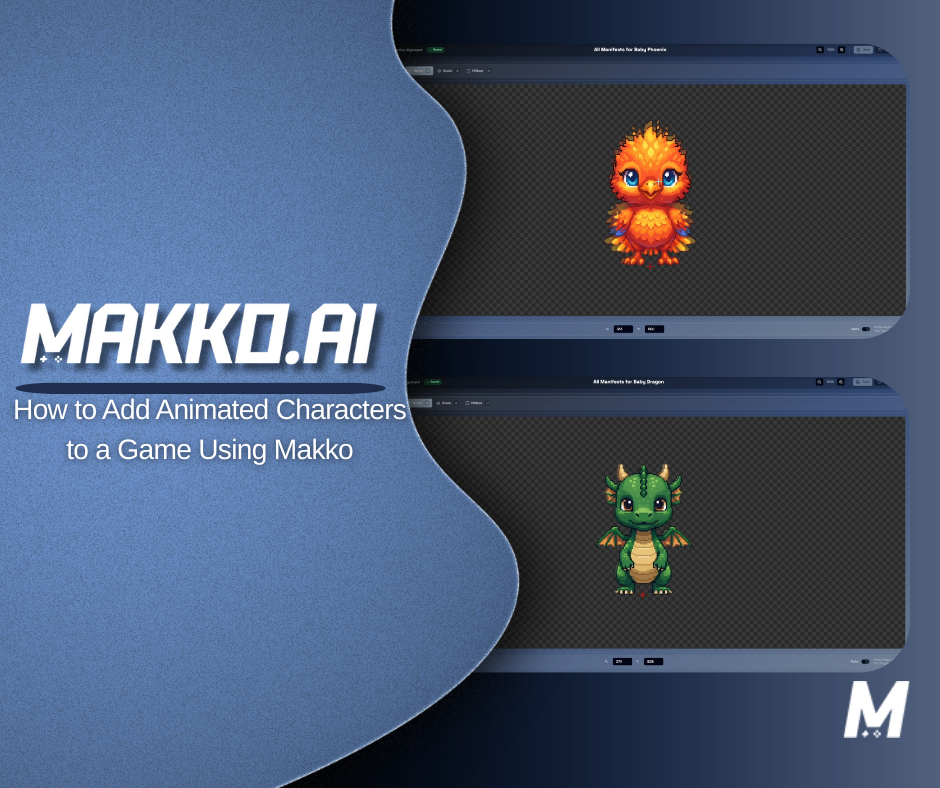
A character manifest is a container that defines everything a character can do. In Makko, a manifest groups all the animations that belong to a single character — idle, walk, attack, and any other actions you created — so the system can correctly associate them with that character's behavior during gameplay.
In the left panel under your reference images, open Character Manifest and click the plus icon. Name your manifest clearly — something like CharacterNameManifest with no spaces. Then check the boxes for every animation you want included for this character. Click Create Manifest.
Two rules to follow here. First: include only animations that belong to this character. Mixing animations from multiple characters into a single manifest causes incorrect behavior in-game. Second: if you are adding multiple characters to your game, create a separate manifest for each one. Every character gets its own manifest.
Manifests keep your animation library organized and make everything easier to reference inside AI Studio. The manifest is what the agentic AI reads when it integrates a character into your game — it is the structured definition of what that character is and what it can do.
Step 6: Add the Character to Your Project in AI Studio
Open AI Studio, then click the Asset Library icon in the left toolbar. Find your character or its manifest. Click the three dots next to it and select Add to Project. This automatically includes your sprite sheet data in the project's manifest file, making it available to the AI when generating gameplay logic.
If you are adding multiple characters, add them one at a time. Adding characters individually allows the project to correctly recognize and register each asset. Do not batch them.
Once your character is added to the project, use Quick Actions to integrate it into the game. Click Quick Actions, choose Add a Character, select your character, and press Generate Prompt. Makko's agentic AI handles the full setup — wiring the character's animations to the appropriate game states and making it playable without you having to write or configure the underlying logic manually.
Repeat the Quick Actions step for every character you want to include. Once all characters are added, you are ready to rebuild.
Step 7: Rebuild and Test
Rebuild the project to apply all changes. Once the rebuild completes, launch the game and check that all characters appear correctly with their animations playing as expected.
If you see UI placeholders or unexpected images appearing in front of your animations, this usually means the game is still referencing generated placeholder assets instead of your external animations. This is a common issue at this stage and is straightforward to fix.
Start a new chat with the AI and describe the issue clearly. Instruct it to hide animation UI placeholders for the affected characters, use only the externally added animations, and ignore any generated placeholder assets. After the AI applies the fix, rebuild again and retest. The updated logic will be reflected correctly in the next build.
If other issues appear, describe exactly what you are seeing versus what you expected and let the AI correct it. The more specific you are, the faster the fix.
Watch the Full Pipeline Walkthrough
The video below covers every step in this guide in real time — character creation, animation generation, frame extraction, sprite sheet baking, manifest building, and AI Studio integration — so you can follow along directly in your own project.
Why This Pipeline Works
The sequence matters. Each step in this pipeline produces an output that the next step depends on. The concept art becomes the reference sheet. The reference sheet informs the animation generation. The animations become extracted frames. The frames become a baked sprite sheet. The sprite sheets get bundled into a manifest. The manifest is what AI Studio reads to integrate the character into your game.
Skipping or rushing any step creates problems that show up later and are harder to fix than doing it correctly the first time. Inconsistent naming causes the AI to lose track of which assets belong where. Unclean frames produce sprite sheets with stutter or visual artifacts. A manifest that mixes animations from multiple characters causes incorrect behavior in-game.
The more consistent your naming and workflow across this pipeline, the faster every subsequent character becomes. The first character you build takes the most time because you are learning the sequence. By the third or fourth, the process is significantly quicker.
Makko's approach combines structured asset management with intent-driven game development. Instead of manually wiring animations to code, you define the character and its actions, and the system coordinates assets, logic, and game state from there. Adding or updating a character does not require touching the underlying code — it requires following the pipeline correctly and letting the AI handle integration.
Quick Reference: Full Pipeline Checklist
- Create Character — Open Sprite Studio, click Create Character, name it, choose concept art source, generate concept, select your preferred result, generate reference sheet, save character
- Generate Animations — Go to Create Animation, name each animation, write a specific description, choose Simple or Complex, generate and review the preview video. Repeat for every animation needed.
- Extract Frames — Set frame rate, frame size, and background color. Open the frame editor, delete duplicate or unwanted frames, tighten the loop.
- Bake Sprite Sheet — Create a new sheet with no spaces in the name, bake. Repeat for every animation.
- Build Manifest — Open Character Manifest, click the plus icon, name the manifest, check only this character's animations, create manifest. One manifest per character.
- Add to Project — Open AI Studio Asset Library, find the character or manifest, click three dots, select Add to Project. Add characters one at a time.
- Quick Actions — Click Quick Actions, choose Add a Character, select your character, generate prompt. Repeat for each character.
- Rebuild and Test — Rebuild the project, launch the game, verify all characters appear and animate correctly. Fix any placeholder issues via AI chat if needed.
For more walkthroughs and live demos across all Makko features, visit the Makko YouTube channel.
Related Reading
- AI Character Creator vs Sprite Sheets: What's Actually Happening
- Makko Sprite Studio Props Generator: A Pipeline Efficiency Guide
- How Agentic AI Chat Builds Game Logic
- State Awareness vs One-Shot Prompts: Why Your AI Game Logic Keeps Breaking
- How Prompt-Based Game Creation Works
- AI Game Generator From Text: How to Build Games Using Natural Language