How to Turn a Rough AI Animation Into a Clean Sprite Sheet
Your first AI animation is a starting point, not the finish. Here is how to clean it up in Makko and bake a sprite sheet you can drop into a 2D game.

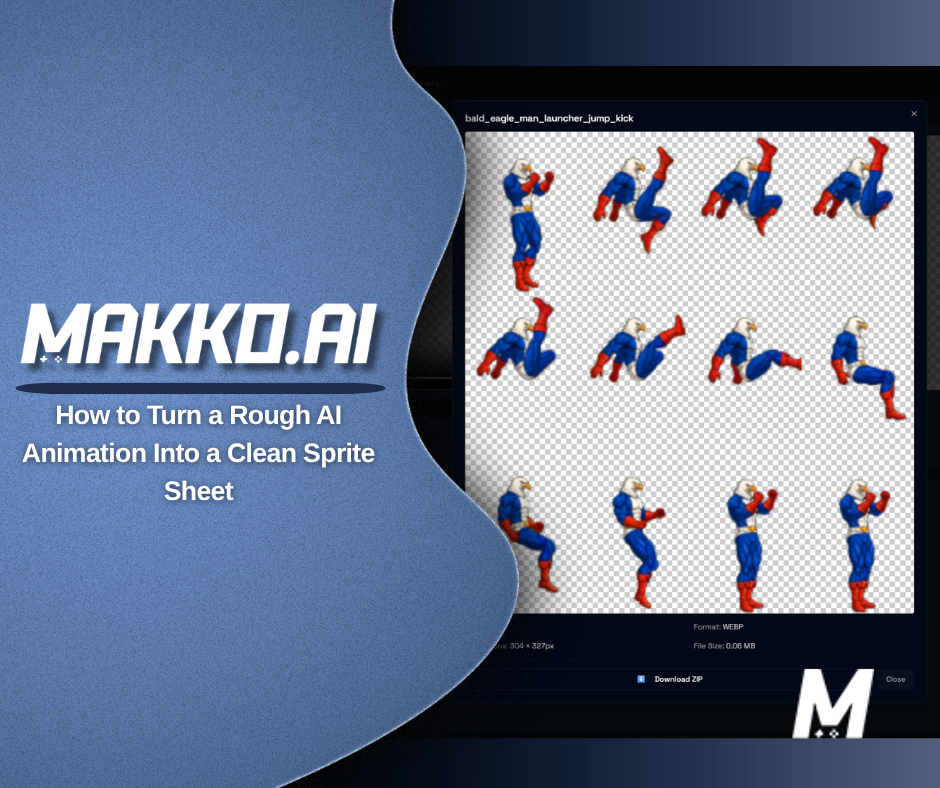
To turn a rough AI animation into a clean one in Makko, you generate the animation from your concept art, then edit it in a single view: delete the weak frames, trim it to the action, retime and loop it, and bake a sprite sheet for your game. The first result is a starting point, not the finish line. Knowing what to keep and what to cut is the whole skill, and it takes minutes, not drawing talent.
Most people meet an AI animation generator, run one prompt, watch the result come out a little stiff or jittery, and quietly decide the tech is not there yet. The tech is fine. What they skipped is the part every animator does anyway: editing. This guide walks the full cleanup, from the first generation to a finished sprite sheet, using the streamlined animation flow in Makko.
Why does your first AI animation look rough?
Because a first generation is raw material, not a finished shot. AI gives you a usable sequence of frames quickly, but it does not know that your attack should land on frame six, that two of the in-between frames look mushy, or that the cape flapping at the end has nothing to do with the swing. That judgment is yours to make. The good news is that making it is fast.
This is not a workaround. It is the same loop a professional animator runs, only without the part where you draw every frame by hand. You generate, you evaluate, you cut what is not working, you keep what is, and you shape the rest into a clean loop. You stay the creative director the whole time. The AI is doing the labor; you are making the calls.
Start with the shortest path to an animation
Animating used to mean walking a fixed path: concept art, then a character, then a reference sheet, and only then a motion. That is gone. Your concept art, reference images, and animations now sit together in your collection, and you take the shortest route that fits what you need.
If you just want a quick motion, animate straight from a piece of concept art. If you want the motion to stay true to your design from more than one angle, generate a reference sheet first. A reference sheet gives you a clean front, side, and back view of the same subject. Pin it to an animation and the AI can see the subject from every side, so the movement holds its shape instead of wandering. You can pull from more than one sheet at a time, or mix concept art with a sheet, when you want several poses or outfit variations feeding the same animation.
Before you generate, you also choose how it renders: the video model quality, the resolution, the clip length, and how many variations to produce at once. Use a faster, lighter pass while you are exploring, and the full-quality model when you are locking something in. Generating a few variations at once gives you more to choose from before you start editing.
How do you clean up an AI animation?
You do it in one place. The animation editor pulls generating, editing, and baking into a single view, so you are not jumping between screens or re-extracting frames every time you change your mind. Here is the order that works:
- Play it back and find the weak frames. Look for the ones that jitter, blur, or break the motion. Every animation has a few.
- Delete or hide those frames. Removing two or three bad frames often fixes the whole sequence on its own.
- Trim to the action. Cut the sequence down to the part that actually carries the movement, and drop the lead-in and trail-off that add nothing.
- Reorder and retime. Move frames into the right sequence and adjust timing so the motion reads at the speed your game runs.
- Flip or duplicate where it helps. Mirror a sequence to get a left and right version without regenerating, or duplicate a frame to hold a pose a beat longer.
- Mirror into a loop. For idles and run cycles, mirror the sequence into a seamless loop so the last frame flows back into the first with no visible jump.
- Resize and resample. Scale the animation to your game's size without re-extracting your frames from scratch. If an edit goes sideways, reset and start the pass over.
None of this requires you to draw. It is selection and timing, the editorial side of animation, and it is where a rough generation becomes something you would actually ship.
Trim to the action, not the maximum reach
The most common mistake is keeping too much. A clean game animation is usually shorter than the raw generation. If an attack swing is the point, you do not need the frames where the character resets their stance or where a cape settles two seconds later. Cut to the frames that carry the motion and let the loop do the rest.
Fewer frames also keeps your sprite sheet small, which your engine will thank you for. A tight ten-frame loop running at the right speed reads better in a fast 2D game than thirty frames of half-motion. When in doubt, cut, watch it loop, and cut again. You are aiming for the clearest read, not the most frames.
How do you bake a sprite sheet you can use in a game?
Once the motion is clean, you bake it from the same view. Makko outputs a sprite sheet as WebP or PNG, with the frame metadata your engine needs to read each frame in order. WebP keeps the file small; PNG is the safe choice when a tool expects it. You do not have to re-extract anything or rebuild your edits to get there, which is the whole reason the editor and the bake step now live together.
From here the same character is ready to move in an actual game. If that is your next step, here is how to add animated characters to a game using Makko, where the sheet you just baked gets wired to player input.
What can you do on the free plan?
Enough to learn the whole workflow before you pay anything. The Free plan gives you a Lite preview of animation, and paid plans unlock the full output range and off-platform export. Here is the split:
| What you get | Free (Lite preview) | Paid plans |
|---|---|---|
| Resolution | 720p | Up to 1080p |
| Clip length | 4 seconds | Up to 8 seconds |
| Variations per generation | 1 | Up to 4 |
| Off-platform export | Not included | Included |
The Lite preview is real practice, not a teaser. The cleanup skills you build there, cutting weak frames and shaping a loop, are exactly the same on a paid plan. Only the output ceiling changes.
Quick answers
Do you need a reference sheet to animate? No. You can animate straight from concept art. A reference sheet is the optional step for when you want front, side, and back views guiding the motion so it stays on design.
Why does my first generation look better than my edit? Usually you cut too little or too much. Re-add a held frame, or trim one more weak frame, and watch the loop rather than the single frames. The loop is what the player sees.
How many frames should a game animation have? Fewer than you think. A clean, well-timed loop of around ten frames usually reads better in a fast 2D game than a long sequence full of half-motion.
The takeaway is simple. AI gets you most of the way to a great animation, and the last stretch is editing, not drawing. Generate from your collection, cut to the frames that matter, loop it cleanly, and bake the sheet. Ten minutes of that and you have an animation nobody would guess started as a rough first pass.
For detailed walkthroughs and live feature demos, visit the Makko YouTube channel.