
AI Game Art Generator: Characters, Backgrounds, Animations and Why Consistency Is the Hard Part
Most AI game art generators solve one piece of the puzzle and hand the rest back to you. This is a complete breakdown of what a full-pipeline generator actually covers — and why consistency across your whole game is the problem worth solving first.

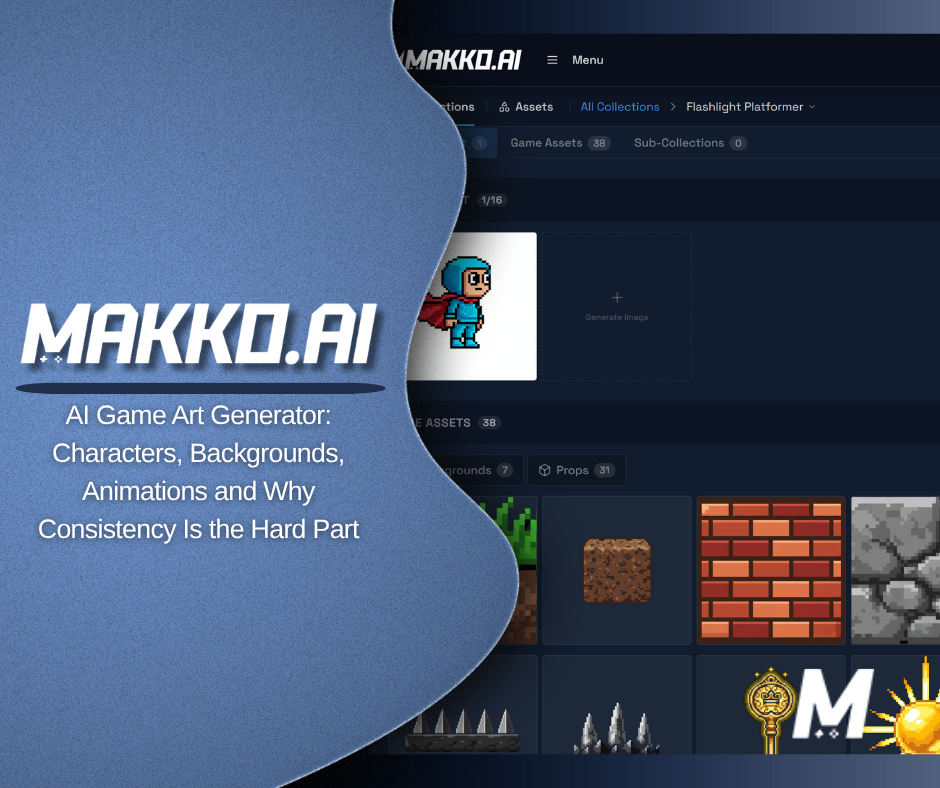
Every 2D game needs art. Characters, backgrounds, objects, animations — the visual layer is not optional. It is the first thing a player sees and the thing that tells them whether your game is worth their time. For anyone building a 2D game without a team of artists, that creates a problem that most AI tools only partially solve.
An AI game art generator sounds like a complete solution. Type a description, get game art. The reality is more specific than that, and understanding the difference between tools that generate individual assets and tools that help you build a coherent visual world is the most important decision you will make when choosing one.
This article covers what AI game art generators actually do, what types of art they produce, what the consistency problem is and why it matters, and how to evaluate your options based on what your game actually needs.
What an AI Game Art Generator Actually Does
At its most basic level, an AI game art generator takes a text description and produces an image. You describe a character — "warrior in dark armor with a glowing sword" — and the AI generates a visual interpretation of that description. Depending on the tool, the output might be a single image, a sprite sheet with multiple poses, a tileable background, or a prop with a transparent background.
The more useful question is what kind of AI game art generator you are actually looking at. The landscape breaks into three categories, and they serve meaningfully different purposes.
The first category is general AI image generators — tools like Midjourney or Leonardo that produce high-quality images from text prompts. These can generate game art, but they are not built for it. They have no concept of transparent backgrounds, animation frames, or game-compatible file formats. They produce visually impressive single images that require significant post-processing before they are usable as game assets.
The second category is single-asset game art tools — tools built specifically for one type of output. AutoSprite generates sprite sheets. PixelLab generates pixel art assets. God Mode AI generates sprite animations. These tools produce game-ready outputs in their specific format but do not connect to each other. You use one for characters, find another for backgrounds, search for something else for props, and end up with art from different sources that may or may not look like they belong in the same game.
The third category is full-pipeline AI game art generators — tools that cover the complete range of art a 2D game needs from a single starting point. This is where the consistency problem either gets solved or does not, depending on the tool.
The Consistency Problem
Consistent game art is the hardest problem in AI game art generation and the one most tools do not address directly.
A real game does not need one good character. It needs every character, background, object, and animation to look like they were made by the same artist with the same aesthetic vision. A dark fantasy warrior and the forest biome she runs through need to share the same color palette, line weight, lighting logic, and level of detail. If they do not, the game looks like a collection of assets rather than a designed world.
Most AI generators solve the individual asset problem but not the consistency problem. Each generation is a fresh prompt to the model, which means each result reflects the model's interpretation of that specific description at that specific moment. You can write detailed style instructions into every prompt and use reference images you have already generated, and experienced users do exactly that. But it is manual work with no guarantee of reliability, and it gets harder the more assets your game needs.
The consistency problem is why choosing an AI game art generator that has a structural answer to this question matters significantly for anyone building a complete game rather than a single scene or prototype.
What a Full-Pipeline Generator Covers
A complete AI game art generator for 2D games covers four categories of output. Understanding what these are helps you evaluate whether a tool is a full solution or a partial one.
Concept art. The visual foundation of the game. Before creating individual characters or backgrounds, you establish what the world looks like — the mood, the color language, the overall aesthetic. A concept art generator that serves as the reference point for everything else is the starting layer that keeps subsequent generations on track stylistically. Without it, every asset you generate starts from scratch with no visual anchor.
Characters. The entities that populate the game. An AI character generator built for games needs to produce characters with specific details — gear, expressions, proportions, color — that look like they belong in the world established by the concept art. A character generator that builds from an existing visual foundation produces dramatically more consistent results than one that starts from a blank prompt every time.
Backgrounds and objects. The environment the game takes place in, plus the props, items, and interactive objects that fill it. These need to match the character art in style. A background that looks painted and characters that look like pixel art create visual dissonance regardless of how good each one is individually. Props and objects also need transparent backgrounds to be used correctly in a game engine.
Animations. The movement that brings characters to life. Walk cycles, attack animations, idle states, hit reactions — in Makko, these are generated using the character's concept art as visual reference, so the animated versions stay consistent with the character you built. The result looks like your character moving rather than a generic approximation.
A tool that covers all four categories from a single visual foundation is solving a fundamentally different problem than a tool that covers one or two of them well. The difference becomes obvious the moment you try to assemble everything into an actual game.
How Collections Solve Consistency Structurally
Makko's Art Studio addresses the consistency problem through a system called Collections.
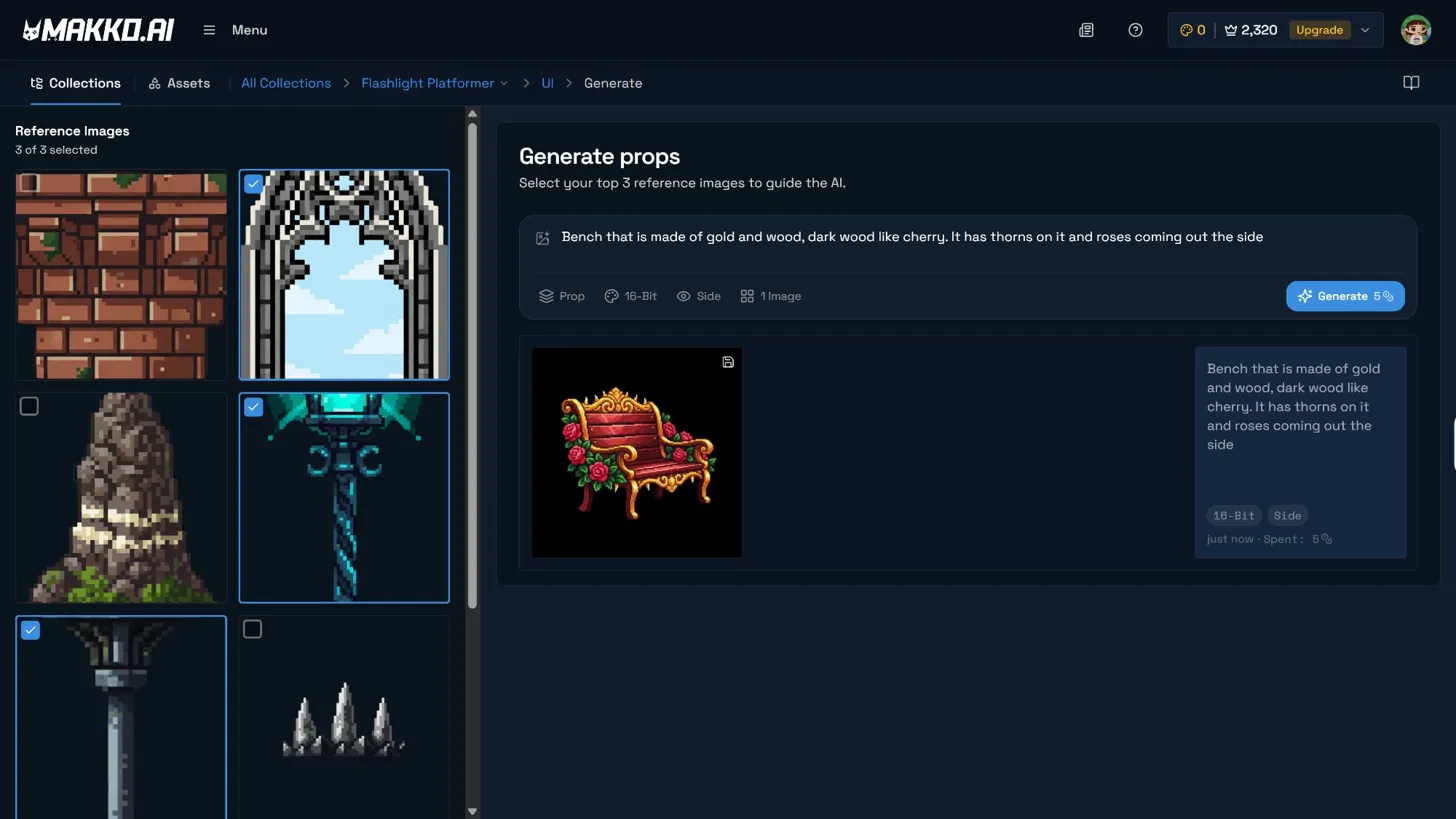
A Collection is a project container for your game's entire visual world. You create one at the start of a project, give it a name — "Dark Fantasy RPG," "Cozy Village," "Neon Cyberpunk" — and generate concept art from a description of your world. That concept art becomes the visual foundation everything else references. When you generate a new asset inside the Collection, you select up to three concept images as AI Reference Guidance. The AI uses those images as the style anchor for that generation, producing output that reflects the visual direction you have already established rather than interpreting your prompt from scratch.
Sub-collections let you organize at a deeper level. You can create one for your main characters, another for enemy groups, another for each biome or environment. Each sub-collection draws from the same concept art pool as the parent Collection. All of your enemy characters share a consistent visual identity. All of your forest assets share a consistent environment style. Everything in the project still belongs to the same world.
This is not a prompting technique. It is a structural feature of how the tool works. The consistency comes from selecting the same concept art reference and the same art style setting across generations — the system makes that process deliberate and repeatable rather than something you have to manage manually across dozens of separate prompts.
The Generation Interface: What You Control Before Writing a Prompt
Inside a sub-collection, Art Studio's generation interface has four controls that shape the output before a single word of the prompt is written. Understanding these is the difference between getting useful game-ready assets and getting generic images.
AI Reference Images. Select up to three concept images from your Collection to guide the AI's output style for this specific generation. The more relevant your reference images, the more consistent the result will be with everything else in the project.
Asset Type. Confirms or overrides the asset type for this generation — Character, Background, or Prop. Art Studio optimizes the output format based on this selection. Characters and props get transparent backgrounds. Backgrounds get full-bleed outputs. The tool knows what a game engine needs for each type before you write a single word.
Art Style. Sets the visual output style. Art Studio supports twelve styles including 16-Bit Pixel Art, HD Pixel Art, Isometric Pixel, Retro 8-Bit, Anime Character, Comic Book Art, Chibi/Cute, Painterly Art, Flat Vector Design, Stylized 3D, Cinematic Realism, and Realistic Portrait. Choosing a consistent art style across all generations in a Collection is critical. A Retro 8-Bit character will not visually match an HD Pixel Art background, and the AI will not automatically reconcile that mismatch.
Images Per Prompt. Sets how many images are generated per prompt. Generating multiple images is useful when exploring visual directions early in a project. Generating one at a time is more efficient when iterating toward a specific result you have already partially achieved.
The Iterate Workflow: AI as Creative Collaborator
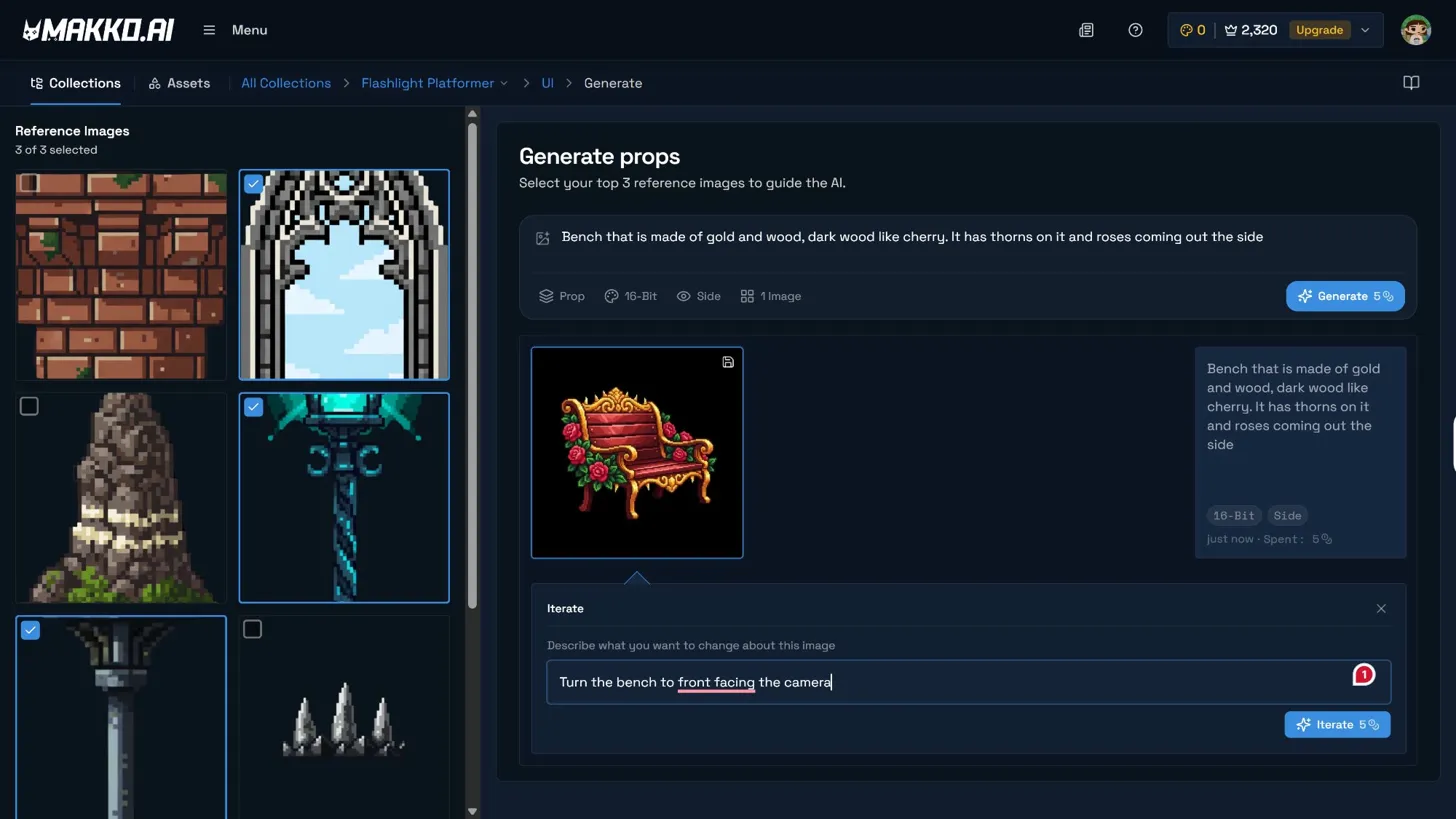
The most common frustration with AI image generation is that the first result is never quite right. Art Studio's Iterate workflow is the direct answer to that.
The first generation result is a starting point, not a final output. When you click on any generated image, the Iterate popup opens. You describe in plain language what needs to change: "make the silhouette more distinct," "add more armor plating to the chest," "make the character's stance wider and more aggressive." The AI generates a new result and places it on top of the original in a stackable carousel. You can see the full iteration history and select any version at any point.
When the result is right, saving it adds it to the Collection's reference art, where it can be used as AI guidance for future generations. This means the more assets you create in a Collection, the stronger your reference pool becomes and the more consistent subsequent generations get. The system improves as you work rather than staying flat.
This is the difference between using AI as a vending machine and using it as a creative collaborator. The developer gives direction. The AI executes. The developer refines. The AI executes again. That is a real creative workflow, and it is what makes Art Studio useful for creators who have a specific vision rather than just needing any image that fits a description.
Art Style Options and What They Mean for Your Game
The art style you choose is one of the most consequential decisions in the workflow, and it is worth making deliberately before you generate anything.
For most 2D games, pixel art styles are the natural choice. The 16-Bit and HD Pixel Art options cover the vast majority of classic game aesthetics from SNES-era sprites through modern indie games. Retro 8-Bit goes further back toward the NES era. Isometric Pixel handles the angled perspective used in games like Stardew Valley and Diablo. These styles have well-established visual grammars that the AI handles reliably, which means your prompts produce consistent results more quickly than with more open-ended styles.
For games with a different visual direction, Anime Character, Comic Book Art, Painterly Art, and Flat Vector Design all produce distinctly different aesthetics. Visual novels benefit from Anime or Painterly styles. Mobile-style games often suit Flat Vector or Chibi. The key principle is choosing one style and staying with it across all generations in the Collection. Mixing styles is the fastest way to end up with assets that do not feel like they belong in the same game.
From Game Art to Playable Game
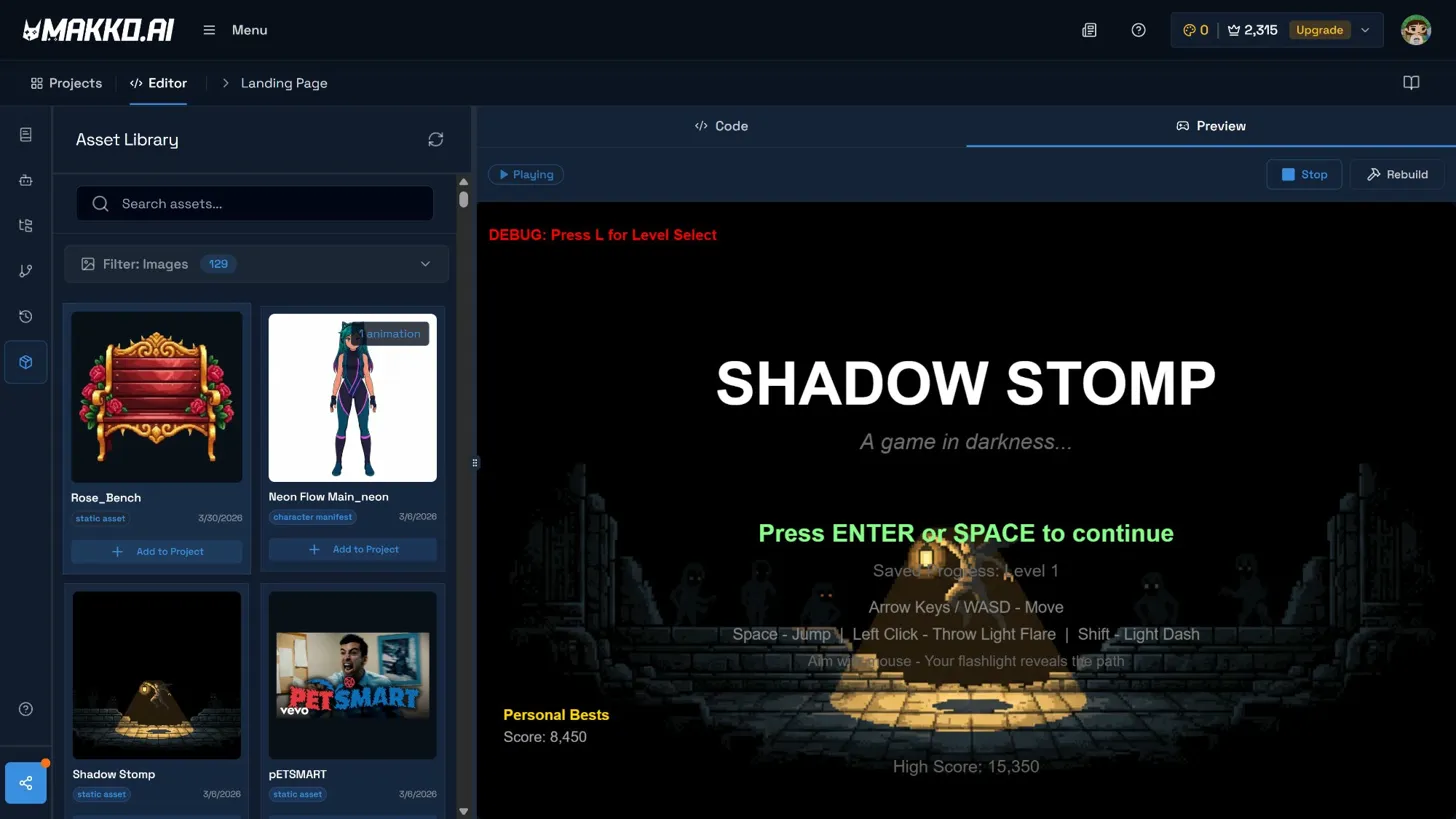
Art Studio does not stop at asset export. Assets created in Art Studio are immediately available in Code Studio through the Asset Library — no file transfer, no reformatting, no manual import. The characters and environments you built in Art Studio become the characters and environments in your playable game.
This connection is what separates Makko from a pure AI game art generator and makes it an AI 2D game maker in the full sense. The art pipeline and the game-building pipeline are the same pipeline. You describe your game idea in Code Studio, the AI builds a playable prototype, and the characters running around in that prototype are the ones you designed in Art Studio. The gap between "I generated some art" and "I have a playable game" is much smaller than with any combination of single-purpose tools.
Who This Is For
A full-pipeline AI game art generator is the right tool for three types of creators.
The first is the non-technical creator who has a game idea and no art background. They need every category of art their game requires, they need it to look like it belongs together, and they need to be able to create it through description rather than drawing. The Collections workflow is built for exactly this person.
The second is the solo developer or hobbyist who can build a game but cannot produce art at the volume and consistency a full game requires. They might be comfortable in a game engine but spend more time hunting for matching assets than building mechanics. A structured AI art pipeline removes that bottleneck completely.
The third is the artist who wants to accelerate their existing workflow. Art Studio supports uploading your own work as reference imagery — if you have an established art style, you can use it as the concept art foundation of a Collection and generate additional assets that extend your style. The consistency system works in both directions: it can establish a style from a description, or it can extend a style you have already created.
Single-asset tools make sense when you need one specific output type and are comfortable managing consistency yourself. A full-pipeline game art generator makes sense when you need everything a game requires and you want it to look like one coherent world rather than a collection of separately sourced assets.
Quick Reference: What to Look For in an AI Game Art Generator
When evaluating any AI game art generator, these are the questions that matter most for actually finishing a game rather than generating interesting individual assets.
- Does it cover all four categories — concept art, characters, backgrounds and objects, and animations — or just one or two?
- Does it have a structural answer to the consistency problem, or does it rely on you managing style manually through prompting?
- Does it start from concept art and build outward, or does it treat each asset as an independent generation with no visual anchor?
- Does the art it produces connect to a game-building tool, or does it stop at asset export?
- Can it animate characters using those characters as visual reference, or does animation require a separate tool and a separate workflow?
The more of these questions a tool answers with yes, the closer it is to a complete solution for building a 2D game without an art team. The fewer it answers, the more coordination work falls back on you to manage manually.
For detailed walkthroughs and live feature demos, visit the Makko YouTube channel.