What Is Makko Art Studio? The AI Game Asset Generator Built for Game Developers

Most solo developers and digital artists trying to build games in 2026 are running the same fragmented workflow: generate an image in Midjourney, open it in Photoshop to remove the background, import it into Aseprite to slice the animation frames, export it in the right format, and then manually manage the files across tools. That is four applications and a file management system just to get one character into a game.
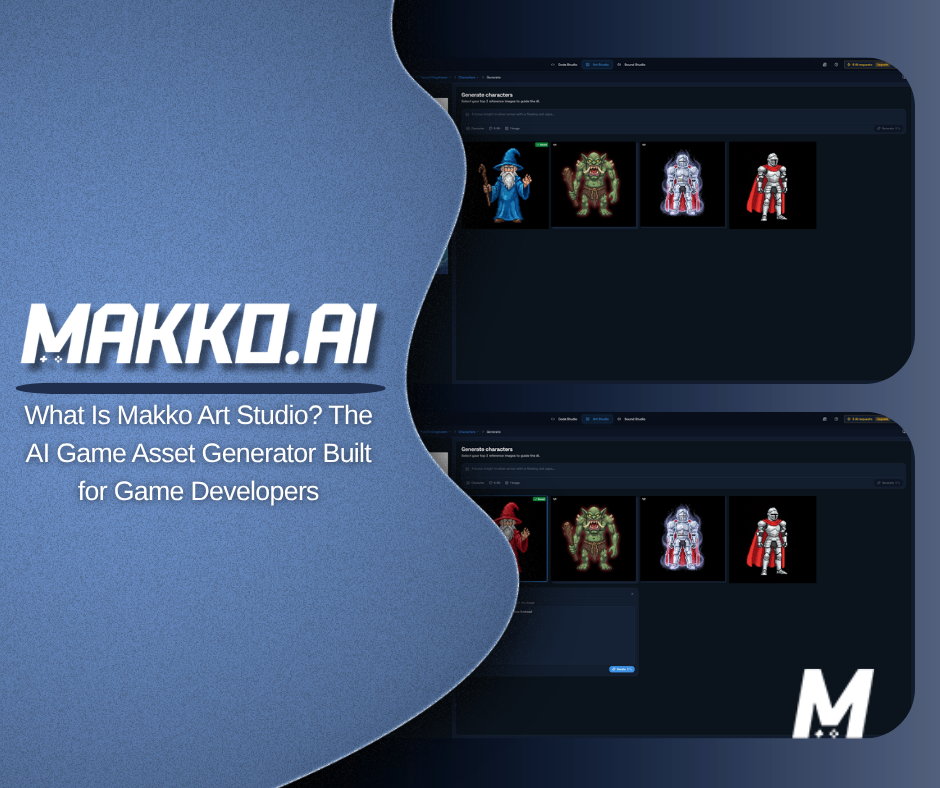
Makko Art Studio is built to replace that entire stack with a single environment. It is the asset creation tool inside the Makko platform, and its specific purpose is generating game-ready visual assets from text prompts: characters, backgrounds, props, and concept art — all technically prepared for use in a game engine before they leave the tool.
This article is a complete walkthrough of how Art Studio works, what the Collections system is, and why the workflow it enables is meaningfully different from general AI game development image tools.
What Art Studio actually is — and what it is not
Art Studio does not generate beautiful images in the way Midjourney or DALL-E does. That distinction matters and is worth understanding before anything else.
General AI image tools are optimized for visual output quality. They generate images. What they produce may be visually impressive but it is rarely technically useful in a game engine without significant manual intervention: removing backgrounds, reformatting files, slicing animation frames, and ensuring the output matches the pixel grid your game is built on.
Art Studio is optimized for game-ready output. Assets it generates have transparent backgrounds, are packaged as animation frames, export in game-compatible WEBP format, and are sized according to game grid standards. The output is designed to be used in a game, not just looked at. That is the core differentiator and the reason developers working in intent-driven game development workflows use it instead of general image tools.
Art Studio sits inside the same platform as Code Studio, the game building environment, and Sound Studio. Users switch between them using the top navigation bar. They share the same account, the same asset library, and the same projects. Nothing needs to be exported or transferred between tools — an asset created in Art Studio is immediately available in Code Studio through the Asset Library.
Collections: the organizational foundation
Everything in Art Studio lives inside a Collection. A Collection is the top-level container for one game project. You create one Collection per game, give it a name, and all assets for that game live inside it. Think of it as the project folder that holds everything the AI needs to maintain visual consistency across your entire game.
Collections have a two-level structure. The top level is the Collection itself, which maps to a single game. Inside it, users create Sub-collections to organize specific asset types: Characters, Backgrounds, Enemies, Props, UI Elements. Each sub-collection keeps the workspace clean as a game grows to dozens or hundreds of assets.
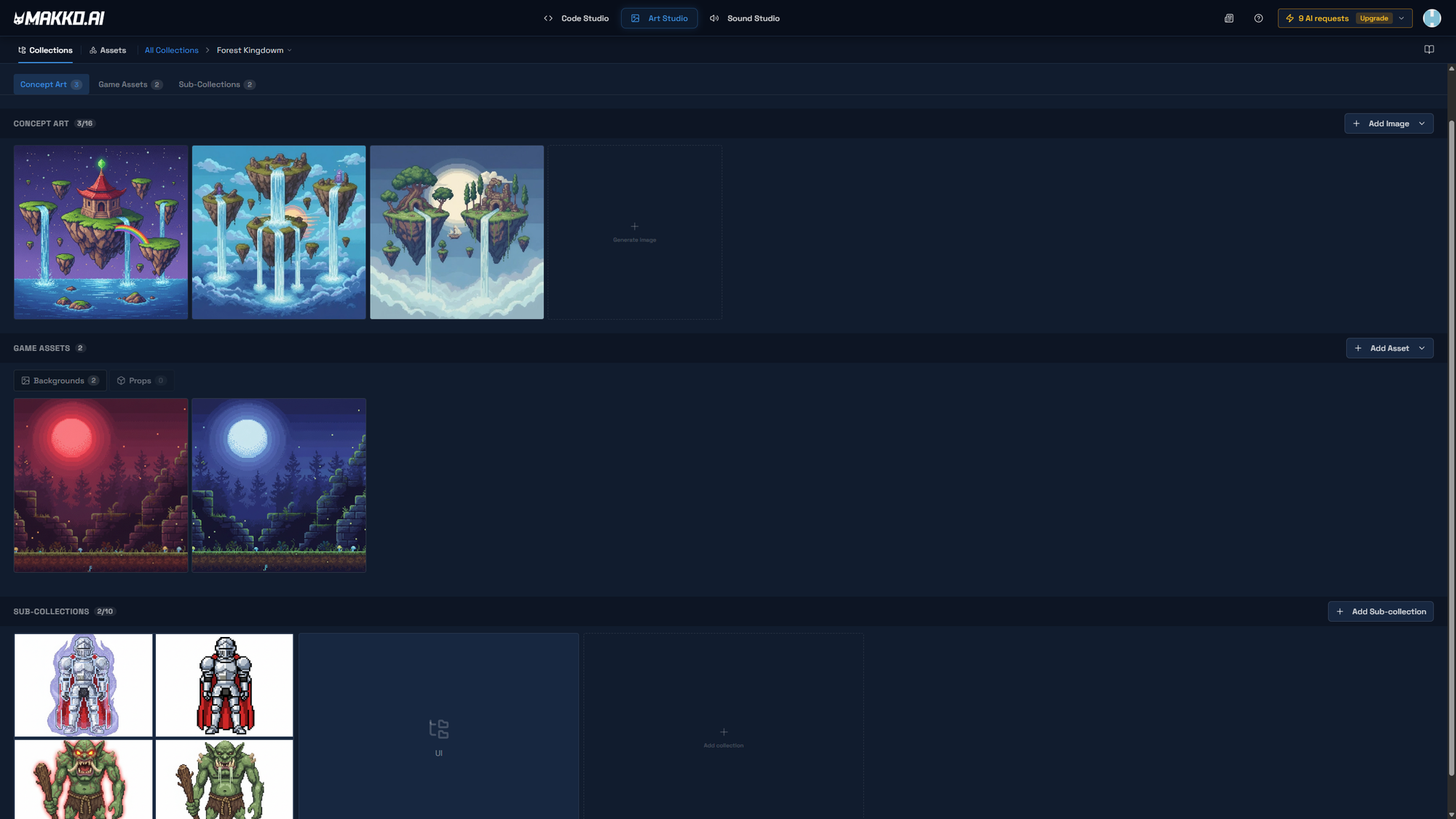
The most important feature of the Collections system is the concept art anchor. Each Collection holds up to 10 concept images. These images serve as style guidance for the AI — every time you generate a new asset inside that Collection, the AI references these images to ensure the output maintains visual consistency with everything else in the project. This is the feature that prevents the style fragmentation problem where your hero character and your background look like they came from different games.
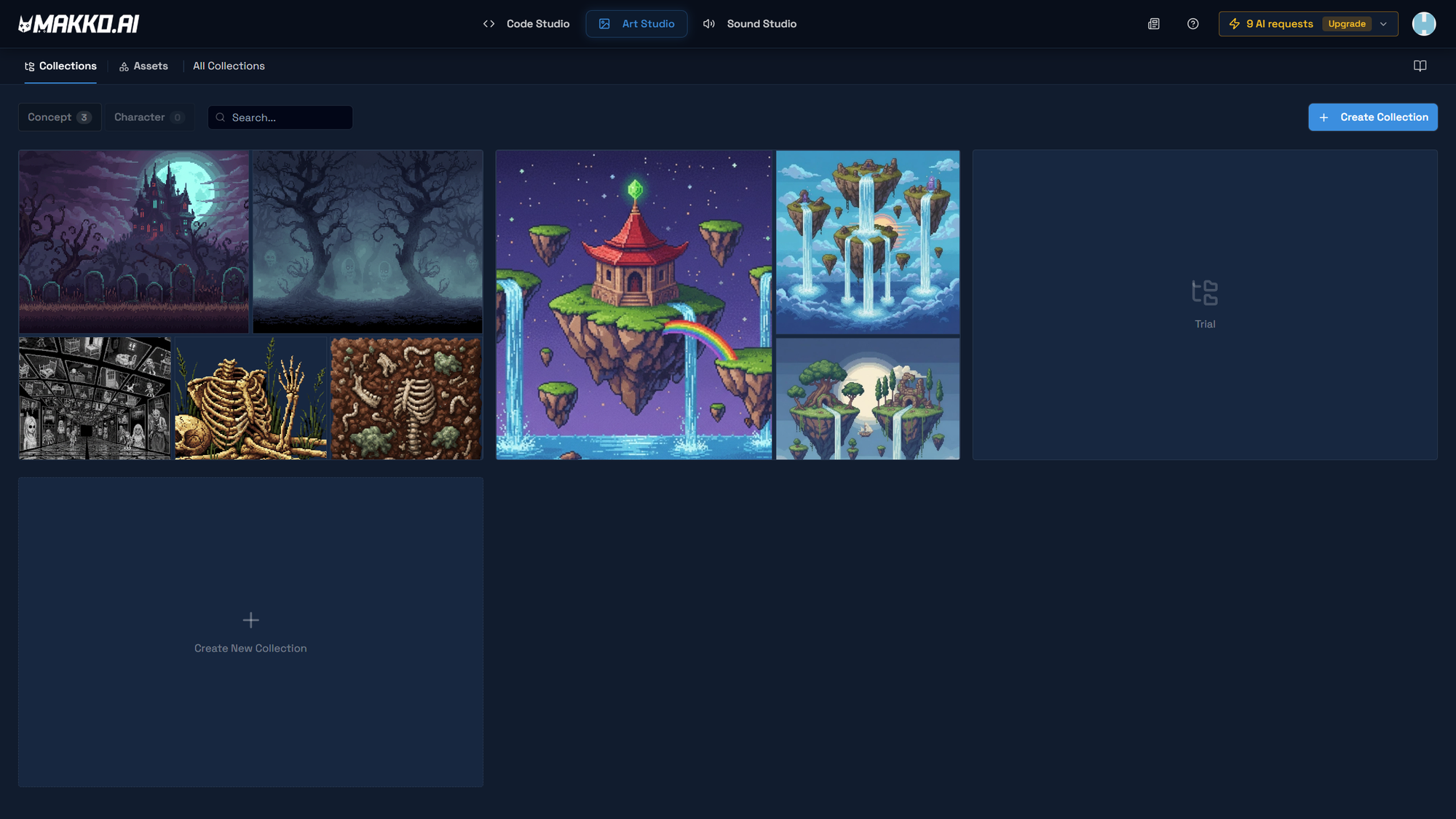
Collection Type: why it matters before you generate anything
When creating a Collection or Sub-collection, users set a Collection Type. This is not just a label. It affects how the AI generates the output, what export settings are available, and how the asset behaves in Code Studio.
The two types are Concept and Character. Concept collections generate reference or mood images used to guide the AI's style for other assets. These are not typically used in-game directly — they establish the visual direction that all other assets will follow. Character collections generate playable characters, NPCs, and enemies with animation-ready frame extraction, transparent backgrounds, and sprite sheet export.
This Collection Type selection is one of the decisions that separates Art Studio from general AI image tools. A general tool does not know whether you need a concept reference or an animation-ready character. It generates an image. Art Studio's Collection Type system means the output is optimized for its specific game engine role before you write a single prompt.
How to create your first Collection
From anywhere in Makko, click Art Studio in the top navigation bar. The landing page shows all existing Collections. First-time users see an empty state.
Click Create a new collection. A creation dialog appears with three fields: Collection Name, Collection Type, and Description. Name the Collection after your game project. Set the Collection Type. Add a description if you are working with a team. Click Create.
You land on the empty Collection page. From here, add concept art, create sub-collections, and begin generating assets. Each Collection card on the landing page also has three management options: Description to add or edit notes, Duplicate to create an exact copy including all concept art and sub-collections, and Delete to permanently remove the collection and its assets.
Adding concept art: the quality lever before generation
The Collection page shows a concept art panel where up to 16 images can be added. These images are the primary quality lever you have before generating anything. The more relevant and specific the concept art, the more consistent the AI's output will be when generating new assets inside that Collection.
There are four ways to add concept art. Generate creates new AI images from text prompts directly inside Art Studio. Once you have created one concept image this way, you can use that image as a reference for any future ones you generate inside the same Collection. Upload imports reference images from your local computer — sketches, mood boards, reference screenshots, or existing character art you want the AI to match. Asset Library lets you browse and use assets already available in the Makko platform's built-in library. Collections pulls from another existing Collection in your account, which is useful when building a sequel or a game that shares a visual universe with a previous project.
The generation interface: four controls before you write a prompt
Inside a Sub-collection, the generation interface has four key controls that shape the output before a single word of the prompt is written.
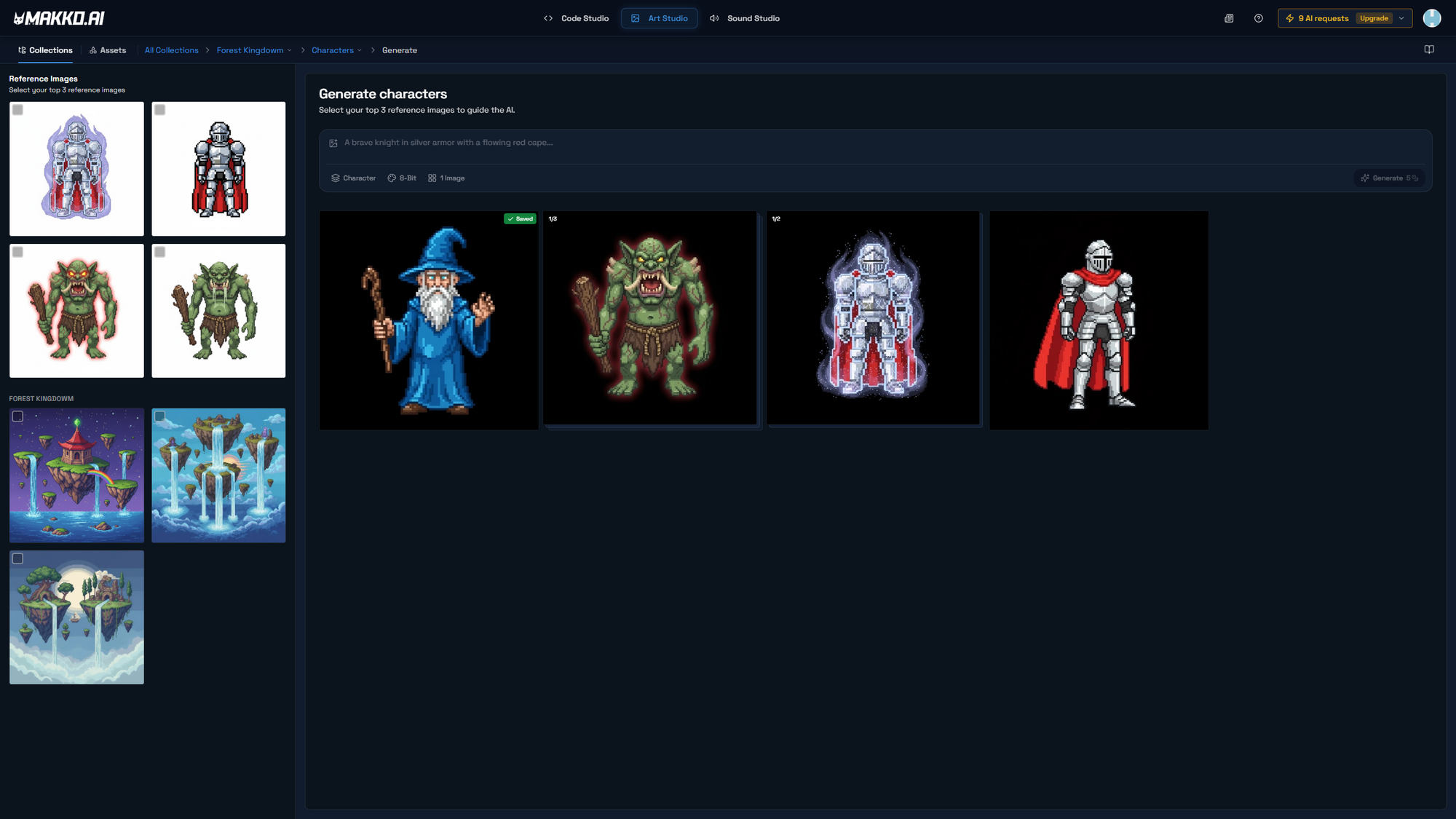
AI Reference Images lets you select up to 3 concept images from the Collection to guide the AI's output style. More relevant references produce more consistent results. This is the per-generation version of the Collection's concept art anchor — you are telling the AI exactly which visual direction to follow for this specific asset.
Asset Type confirms or overrides the asset type for this specific generation: Character, Background, or Prop. Even if your Sub-collection is set to Character, you can override for a single generation if the workflow requires it.
Art Style sets the visual output style for the generation. This is one of the most consequential choices in the workflow. Art Studio supports 12 art styles: 16-Bit Pixel Art, HD Pixel Art, Isometric Pixel, Retro 8-Bit, Anime Character, Comic Book Art, Chibi/Cute, Painterly Art, Flat Vector Design, Stylized 3D, Cinematic Realism, and Realistic Portrait. Choosing a consistent Art Style across all generations in a Collection is critical. A Retro 8-Bit character will not visually match an HD Pixel Art background, and the AI will not automatically reconcile those differences.
Images Per Prompt sets how many images are generated when you click Generate. Each image costs credits, so this control lets you decide how much you spend per prompt. Generating multiple images per prompt is useful when you are exploring visual directions early in a project. Generating one at a time is more efficient when you are iterating toward a specific result you have already partially achieved.
Writing effective prompts for game assets
The prompt is where your creative direction lives. For game assets, effective prompts include two things: the subject and the mood or detail.
The subject describes what the character, object, or scene is. "A rugged space salvager in worn work gear" or "a medieval stone bridge over a shallow river at dusk." The mood and detail layer adds specificity that separates a generic result from something with real character: "tired but determined expression," "cracked porcelain face with empty eye sockets," "ivy growing over the northern edge of the bridge."
Specificity in the prompt combined with relevant AI Reference Guidance images is the primary combination that produces consistent, game-ready results. Neither alone is as effective as both together.
The Iterate workflow: AI as creative collaborator, not vending machine
The most common complaint about AI image generation is that the first result is never quite right. Art Studio's Iterate workflow is the direct answer to that complaint.
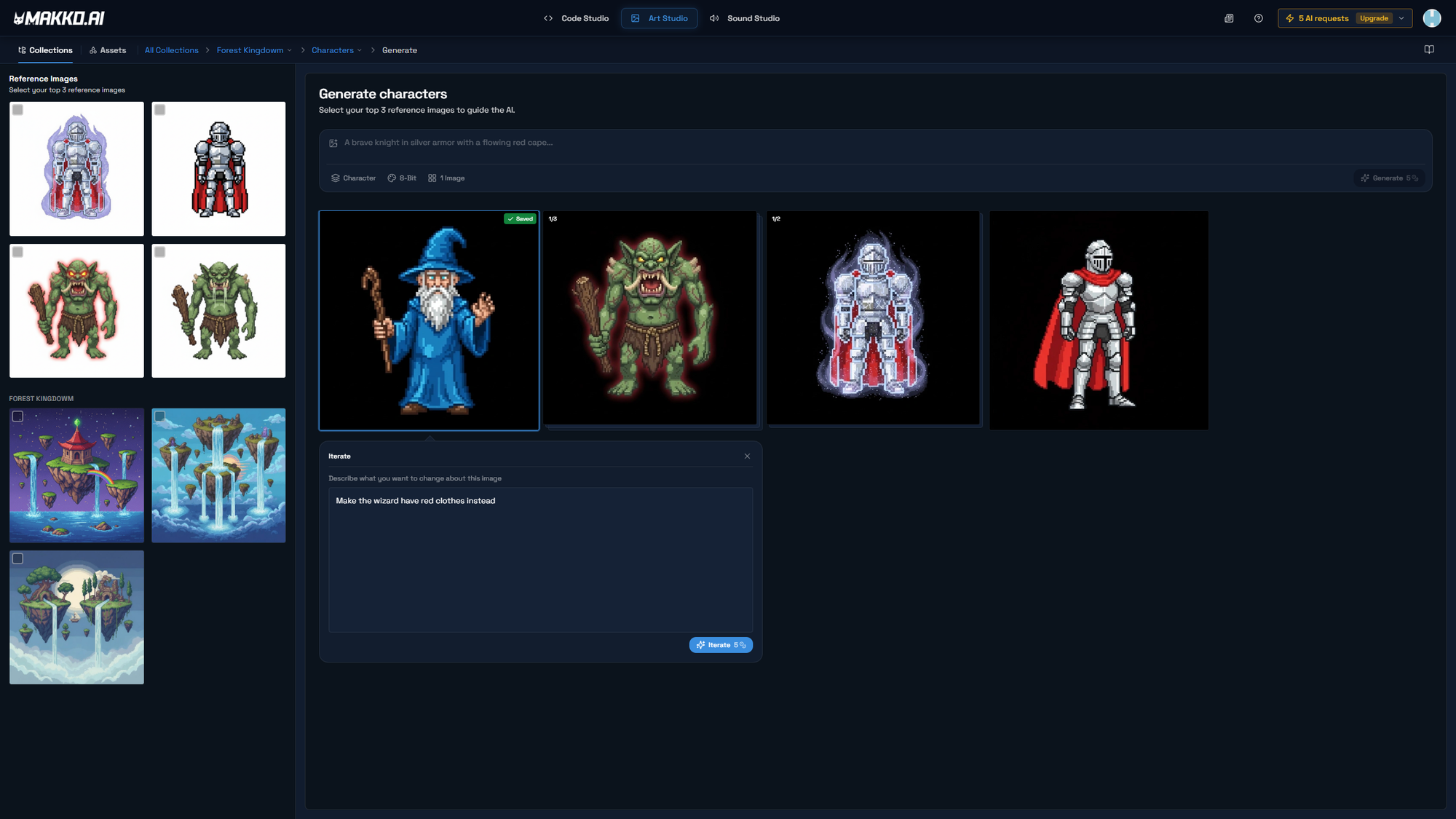
The first generation result is a starting point, not a final output. When you click on any generated image, the Iterate popup opens. You describe in plain language what needs to change. Some examples of effective iterate prompts:
- "Make the silhouette more distinct — slimmer build, darker outfit"
- "Make the porcelain doll head larger relative to the spider legs"
- "Add more armor plating to the chest and shoulders"
- "Make the character's stance wider and more aggressive"
Each iteration produces a new result and places it on top of the original in a stackable carousel. You can see the full iteration history and select any version at any point. When the result is right, clicking Save adds it to the Collection's Reference Art, where it can be used as AI guidance for future generations or directly in your game via Code Studio.
This is the difference between AI as a vending machine and AI as a creative collaborator. The developer gives direction. The AI executes. The developer refines. The AI executes again. That is a real creative workflow, and it is what makes Art Studio useful for developers who have a specific vision rather than just needing any image.
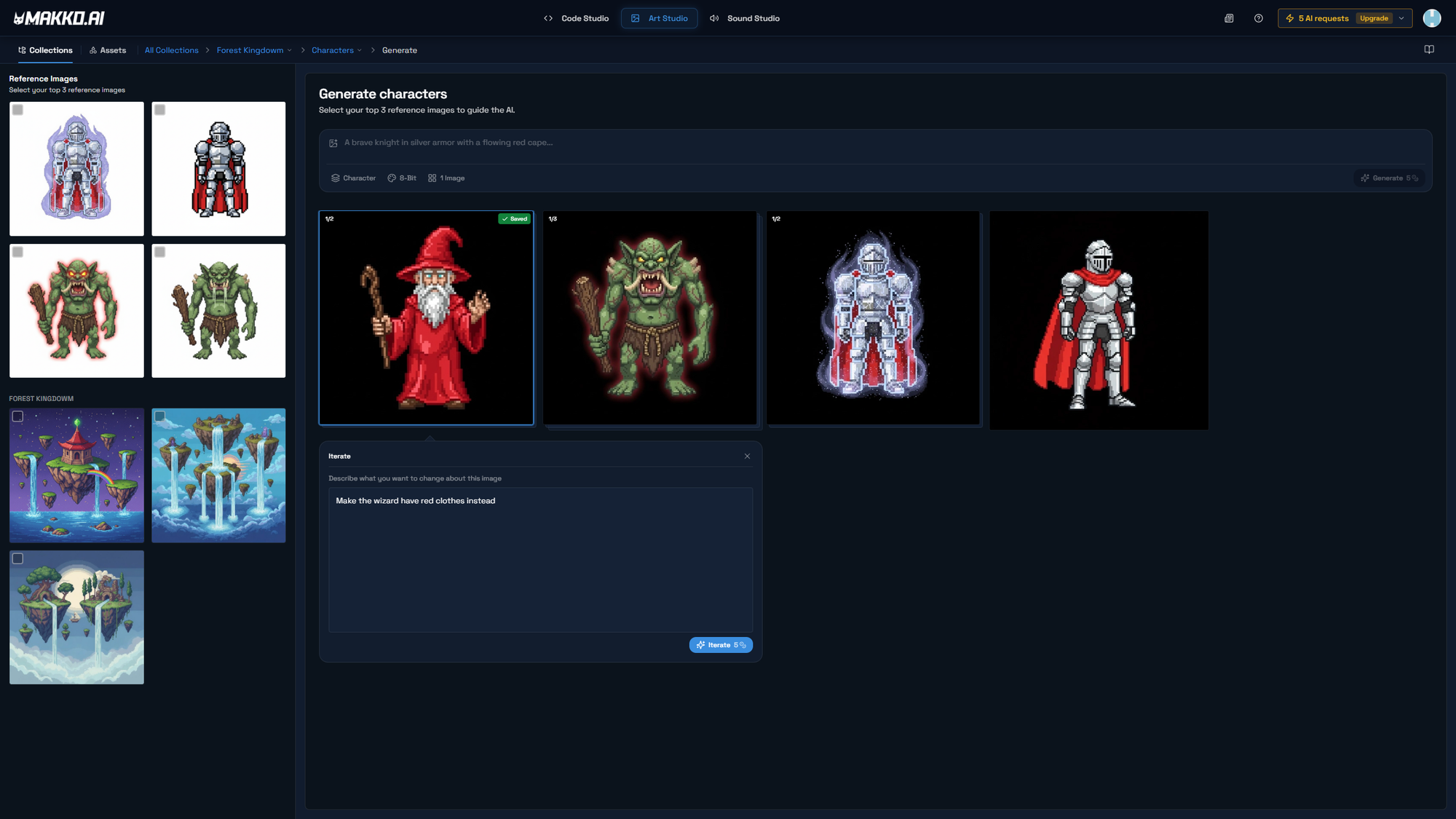
The complete Collections workflow from start to finish
Here is the full workflow in sequence, as a quick reference for developers setting up Art Studio for the first time or returning to it for a new game project.
- Create a Collection — name it after the game, set the Collection Type to Concept or Character.
- Add Concept Art — upload reference images or generate style anchors. Up to 16 per Collection.
- Create a Sub-Collection — Characters, Backgrounds, Props, Enemies, or whatever asset types your game needs.
- Set Generation Controls — Asset Type, Art Style, and AI Reference Guidance images (up to 3 references).
- Write a Prompt — describe the asset in plain language. Include subject, mood, and key visual details.
- Generate — click Generate and review the result.
- Iterate if needed — click the image, describe the change, generate a refined version.
- Save to Reference Art — add the finished image to the Collection's style anchor for future consistency.
- Repeat until you have all the assets your game needs.
Credits and what they cost
Art Studio uses credits for asset generation. Character concepts and props cost 5 credits per image. Character reference sheets cost 12 credits. Sprite animations — the animated sprite sheets used for character movement states like walk, run, and attack — start from 45 credits given the additional processing involved in producing animation-ready frames.
Makko offers a free tier with 150 art credits every 30 days and 50 chat credits every 7 days — no credit card required. That is enough to explore the Collections workflow and generate a meaningful set of concept art before committing to a paid plan. Subscription plans start at $20 per month and scale based on usage. Credit top-ups are available for one-time purchases that never expire, with volume discounts increasing at higher quantities.
The credit system is designed to be transparent about what each AI-powered action costs so developers can make informed decisions about how many images to generate per prompt and when to iterate versus regenerate from scratch.
What Art Studio is not
A few things worth being clear about before the wrong expectations take hold.
Art Studio does not build your game for you. It generates assets. The creative decisions — what the game looks like, who the characters are, what visual style fits the tone — are made by the developer. Art Studio executes those decisions. It does not make them.
Art Studio is not a no-skill tool in the sense that anyone will produce great results without any creative input. It requires creative direction. The ability to describe what you want clearly and specifically is the skill the tool amplifies. Developers who can articulate their vision in language will get strong results. Developers who cannot will get generic ones.
Collections are also not the same as manifests. Collections are where assets live in Art Studio. Manifests are what get sent to Code Studio for use in a game. They are separate systems with different functions. An asset created in Art Studio becomes available in Code Studio through the Asset Library, where it can be added to a character manifest and wired into game logic.
Who Art Studio is built for
Art Studio is built for solo developers and digital artists who have a game vision but not the drawing skills, time, or budget to produce a full asset library through traditional means. It is also built for small teams who need to move faster than their art pipeline currently allows.
The people who get the most out of it are creators who know exactly what they want but have previously been blocked by the gap between their vision and their technical ability to execute it. Art Studio closes that gap by handling the execution while keeping the developer in control of the creative direction.
If you have been using Midjourney or DALL-E to generate game art and then spending hours reformatting it for your engine, Art Studio is built specifically for the problem you are already solving manually.
For detailed walkthroughs and live feature demos, visit the Makko YouTube channel.
Related Reading
- AI Character Creator vs Sprite Sheets: What's Actually Happening
- How to Add Animated Characters to a Game Using Makko
- Makko Sprite Studio Props Generator: A Pipeline Efficiency Guide
- What Is an AI Game Development Studio?
- What Is Intent-Driven Game Development?
- Can You Make a Game With AI Without Coding? Real Examples