
9 Tools for Designing Game UI in 2026
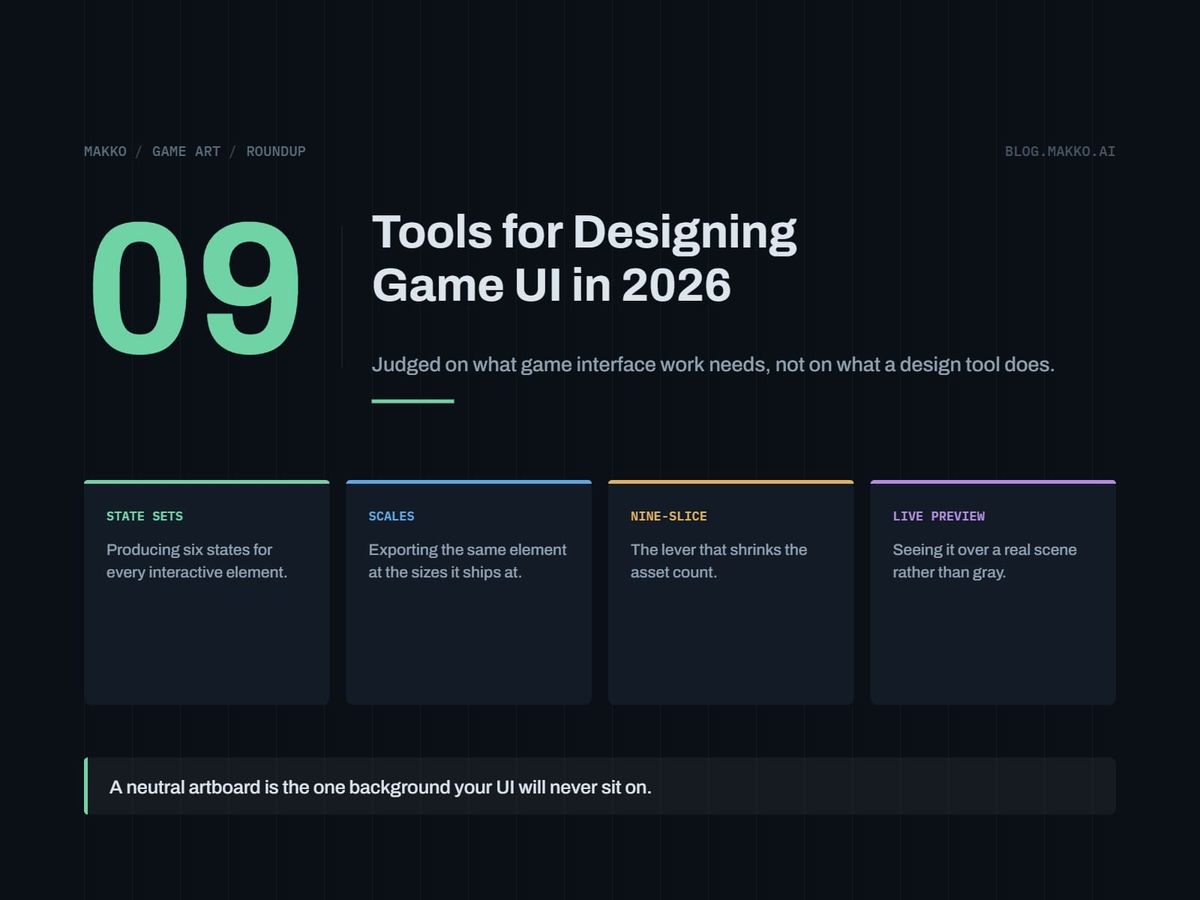
Ranked on what game interface work actually needs: a full state set per element, export at multiple scales, nine-slice, and preview against a real scene rather than a neutral artboard.
Most game UI gets designed on a static artboard and then falls apart the first time it sits over a moving scene at a resolution nobody planned for. A button that reads cleanly on neutral gray disappears against a bright sky.
This list covers nine tools for designing and producing 2D game interface art, ranked on the four jobs game UI has to do: a complete state set for every interactive element, export at more than one scale, nine-slice frames that stretch without smearing, and a preview against a real game background instead of a blank canvas. The reader I have in mind is a solo developer or the programmer on a two-person team, someone who can ship a game and cannot draw.
Disclosure: this is the blog of Makko, an AI-powered 2D game art studio, and Makko is one of the nine entries, placed where it belongs against those criteria and no higher. Prices are as of September 2026 and come from each vendor's own pricing page. Where a vendor does not publish a number publicly, I describe the shape of the pricing rather than guess at it.
The short version. If your interface is panels, text and a handful of icons, build it in your engine and skip the art tool: Godot is free under the MIT license with no royalties or revenue thresholds, and the preview is the running game. For a pixel-art project that needs drawn UI, Aseprite is the paid one-time purchase, with Pixelorama, LibreSprite and Piskel free to test first. If you need a matched set and cannot draw it, use a generator for the pieces, then composite and slice them in the engine.
How these were picked
Every entry is scored against the same five questions.
- Cost, and what happens at renewal. A one-time purchase and a subscription are different risks for a project that takes three years.
- Commercial license. Several tools here have a free tier whose output you may not ship. Where that is true, I say so.
- Output control. Can you put a specific pixel in a specific place, or are you steering from a distance?
- Consistency across a set. A UI kit is a panel, a button in four states, a slider, a checkbox, a tab, a tooltip and twenty icons that all have to look like they came from one hand.
- Pipeline fit. How much manual work sits between the tool and the running game?
Nine-slice and multi-scale export vary by version and by export path, so test them before committing a project. The craft side, meaning what makes a button read as pressable at all, is covered in game UI art for developers, the companion piece to this list.
1. The engine-native route (Godot or Construct 3)
For a large share of small games the correct answer is to not use an art tool at all. You build the interface from the engine's own UI nodes, style it with solid fills, a font and a few icons, and never open a painting program. Saying this first is the only reason to trust the rest of the list.
This route takes the hardest criteria outright. Previewing against a real background is free, because the preview is the game, running, with the scene moving underneath. Scaling falls to the engine's layout system. Nine-slice is an engine concept before it is an art concept, and a state set becomes a property change rather than four drawn images to keep in sync.
Godot is free and open source under the MIT license, with no royalties, no revenue thresholds and no seat costs, and it handles 2D tilemaps, sprites and animation natively. Construct 3 is commercial, with no royalties on any tier:
- Personal: $129.99 per year or $15.99 per month, all features, individuals and hobbyists only
- Startup Business: $168.99 per seat per year, requires under $50,000 revenue, under $100,000 in assets and at most three employees
- Business: $468.99 per seat per year
- Education: $32.99 down to $9.90 per seat per year, three-seat minimum
Pick this if your UI is structural: menus, HUD numbers, inventory grids, settings screens. Do not pick this if the interface carries the art direction, meaning carved panels or painted scroll edges, because engine primitives will not give you that.
2. Krita
Krita is a free, open source raster painting application, the general-purpose painter on this list. That makes it the right home for UI art that is illustrated rather than pixel-gridded: ornate frames, painted panel backgrounds, soft icon sets.
Cost is zero and there is no commercial-use clause to read. Output control is total, because you paint every pixel. That is also the cost: a dozen elements times four states is a lot of manual work, and holding them consistent is on you.
Pick this if your game's art is painted and you have some drawing ability or the patience to build it. Do not pick this if you are making pixel art on a fixed small grid, where a dedicated pixel editor fits the hand better.
3. Aseprite
Aseprite is a paid pixel art and animation editor. It is a one-time purchase rather than a subscription, sold through Paddle, itch.io and Steam, and a purchase includes a Steam key. The price was not readable on a public page at the time of writing, so check the buy page before you budget. The shape of the deal is the point: you pay once.
For a pixel-art game a dedicated pixel editor is the difference between drawing a 16-pixel icon and fighting a tool that assumes you want anti-aliasing. Pixel UI lives or dies on legibility at small sizes, which means hand-placing pixels rather than scaling something down.
Pick this if your game is pixel art and you will be in the tool most days. Do not pick this if you have not yet tested a free pixel editor, since three of them are below and cost nothing to try.
4. Pixelorama
Pixelorama is a free, open source pixel art editor. It occupies the same pipeline slot as Aseprite for nothing, and it is the first free option to try for a pixel UI set.
Your evaluation is not whether it can draw a button, because it can. It is whether the export path hands your engine the sizes it wants without a manual step every time you change a pixel. Build one element end to end before you build forty.
Pick this if you want a desktop pixel editor and would rather spend nothing until the project proves real. Do not pick this if your UI is painted rather than pixel-gridded.
5. LibreSprite
LibreSprite is a free, open source pixel art and animation editor. Same category as the two entries above, same zero cost, no commercial-use clause to read.
With three free pixel editors here, the choice comes down to which interface you stop noticing. You are about to draw several hundred small images, and you will finish in whichever tool you stop fighting. Install two, draw the same button in both, keep the faster.
Pick this if you want an open source pixel editor you can inspect and build yourself. Do not pick this if you have already settled into another editor, since switching mid-project costs more than any tool here does.
6. Piskel
Piskel is a free pixel editor that runs in the browser as well as on the desktop. The browser part is its distinguishing feature: nothing sits between you and a first test. Treat it as the sketchpad in a mixed setup, then move production into a desktop editor once the element list is settled. For that list, use our 2D game UI kit checklist.
Pick this if you want to test a UI idea in the next five minutes, or you cannot install software on your machine. Do not pick this if you need one tool to carry an entire shipped UI set.
7. Makko
Makko generates 2D game art around collections, where a collection binds the look, feel and style across a whole asset set, and it bakes sprite sheets from generated animations. For UI the relevant part is the collection, since a UI kit is a consistency problem more than a drawing problem.
Where it sits against this article's criteria is plain. It produces source images. It does not composite them over your running scene, set your nine-slice borders, or lay out your HUD. Those steps happen in the engine afterward. Rank it as a supplier of pieces, not as the place the interface gets assembled.
Pick this if you need a matched set of UI art, cannot draw it, and expect to get the "keep fifty small images related" part wrong. Our piece on UI consistency with game art covers what related means in practice. Do not pick this if your interface is three buttons and a pause menu, because entry one does that for free.
8. Scenario
Scenario is an AI image generation platform aimed at game asset production, with custom model training on its higher tiers. All paid plans include a full commercial license, and annual billing is stated as 33% cheaper than monthly.
- Free: 50 free daily credits, no credit card required, outputs for personal and evaluation use only
- Starter $15 per month: 1,500 monthly credits, single user, 65 or more core models, private generations, 50 GB storage
- Pro $45 per month: 5,000 credits, priority queue, unlimited relaxed generations, custom model training, 500 GB
- Max $75 per month: 10,000 credits, workspace up to 25 users, custom editing model training, 1 TB
- Enterprise: custom, annual minimum, 10 or more users
Pick this if you want generation plus style control and can pay at the $45 Pro tier, where custom model training starts. Do not pick this if you plan to ship free-tier output, which the license does not allow.
9. Leonardo.Ai
Leonardo.Ai is a general AI image generation platform on a token-based plan structure.
- Free $0: 150 fast tokens per day, token bank 150, public creations, 1 personal collection
- Essential $12 per month: 8,500 fast tokens, private creations, 10 personal models, 2 simultaneous generations
- Premium $30 per month: 25,000 fast tokens, 20 personal models, 3 simultaneous, unlimited relaxed image generation on select models
- Ultimate $60 per month: 60,000 fast tokens, 50 personal models, 6 simultaneous
- Teams: Starter $72 per month ($24 per seat), Growth $144 per month ($48 per seat), Enterprise custom
Read the license line carefully. Paid subscribers get full ownership of outputs, while the free tier is a non-exclusive royalty-free license and creations are public. For a commercial game that pushes you to at least the $12 Essential tier, which also makes generations private.
Pick this if you want the cheapest paid entry into generation, at $12 per month. Do not pick this if you need a set of UI pieces that match each other, since a general platform puts more of that burden on your prompting.
Comparison table
| Tool | Cost (September 2026) | Commercial catch | Built for | Live preview |
|---|---|---|---|---|
| Godot | Free, MIT | None | UI built where the game runs | Yes |
| Construct 3 | $129.99/yr or $15.99/mo Personal; $168.99/seat/yr Startup; $468.99/seat/yr Business | No royalties; Personal is individuals only; Startup capped at $50k revenue, $100k assets, 3 staff | Same as Godot | Yes |
| Krita | Free, open source | None | Painted UI art | In-engine |
| Aseprite | Paid one-time, price not published | None | Pixel UI and animation | In-engine |
| Pixelorama | Free, open source | None | Pixel UI and animation | In-engine |
| LibreSprite | Free, open source | None | Pixel UI and animation | In-engine |
| Piskel | Free, browser and desktop | None | Fast pixel sketching | In-engine |
| Makko | Not stated here | See Makko's terms | Collection-bound sets, sprite sheet baking | In-engine |
| Scenario | Free; $15 Starter; $45 Pro; $75 Max | Free tier personal and evaluation only; paid plans carry a full commercial license | Game-oriented generation, training from Pro | In-engine |
| Leonardo.Ai | Free $0; $12 Essential; $30 Premium; $60 Ultimate | Paid gets full ownership; free tier non-exclusive royalty-free, creations public | General image generation | In-engine |
How to choose
Run this in order and stop at the first line that describes your project.
1. UI is panels, text, numbers, a few icons?
   -> Build it in the engine. Godot costs nothing. Stop.

2. Interface carries the art direction?
   -> Continue.

3. Pixel art game?
   -> Pixelorama, LibreSprite, Piskel first (free).
   -> In the tool daily? Buy Aseprite (one-time).

4. Painted game?
   -> Krita (free).

5. Cannot draw at all?
   -> Consistency is the main risk.
   -> Makko binds a set to one collection.
   -> Scenario: training from $45/mo, paid = commercial.
   -> Leonardo.Ai: cheapest paid entry, $12/mo.
   -> Never ship free-tier output unread.

6. Then, whatever you picked:
   -> Assemble, nine-slice and scale in the engine.
   -> Check one element over a real moving background.
Frequently asked questions
Do I need an art tool for game UI at all?
Often no. If your interface is menus, a HUD, an inventory grid and a settings screen, engine primitives plus a good font and a small icon set will carry a shipped game. Reach for an art tool when the interface has to carry style, not just information.
Can I sell a game with art made on a free AI tier?
Check each one, because they differ. Scenario's free plan outputs are for personal and evaluation use only. Leonardo.Ai's free tier is a non-exclusive royalty-free license with public creations, while paid subscribers get full ownership of outputs, starting at $12 per month. The free drawing tools here carry no such restriction.
Should I pay for Aseprite when free pixel editors exist?
Test the free ones first. If after a week of real production you are still fighting your export step or your animation timeline, a one-time purchase that never renews is a fair trade.
Why does nine-slice keep coming up?
Because a panel has to fit text you have not written yet. Nine-slice cuts a frame into corners, edges and a center so the corners stay sharp while the edges and middle stretch to any size. Without it you draw a separate panel image for every dialog box in the game.
How many states does each UI element need?
Plan for four on anything clickable: default, hover, pressed and disabled. Drawing all four up front costs less than retrofitting a disabled state into forty finished buttons later. Budget the state count before the element count, since it multiplies everything else.