How to Make a Game Without Coding
You do not need to write a single line of code to build a playable game with Makko AI. This guide walks through the full pipeline, character creation, animation, sprite sheets, game logic, and debugging, entirely through natural language and agentic AI.

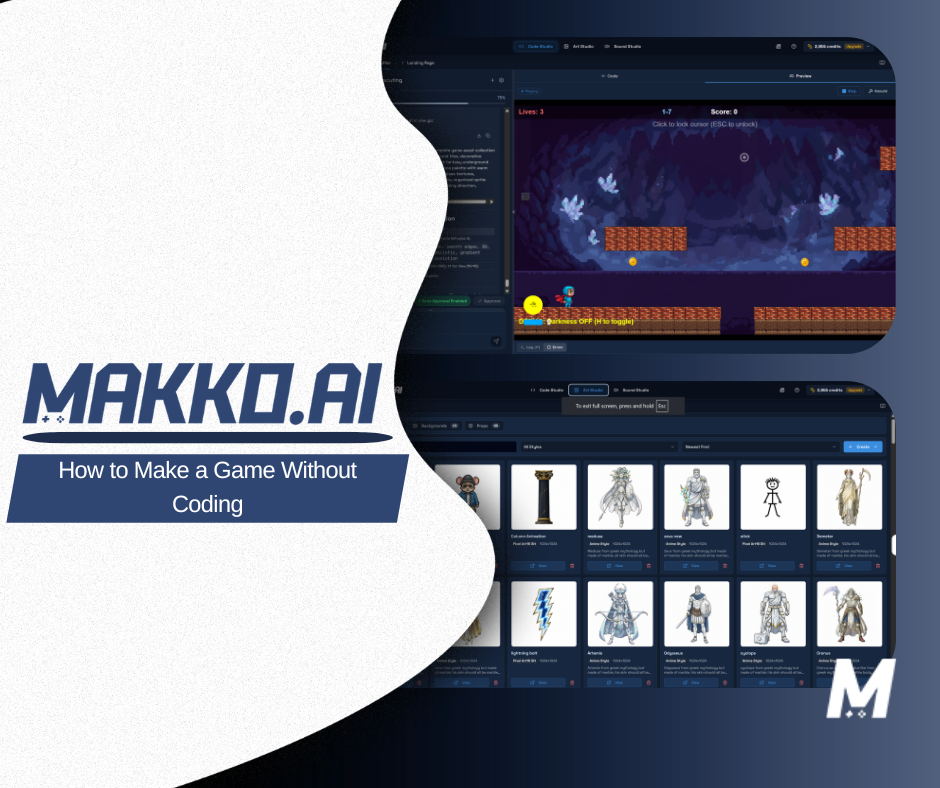
The most common assumption people bring to game development is that it requires coding. That assumption is not unreasonable: for most of the history of the medium, writing code was the only way to tell a computer what a game should do. If you could not write scripts, define logic, and manage state in a programming language, you could not build a game. Someone else had to do it for you.
That is no longer true. Not because game development has gotten simpler, but because a new layer has been added between your intent and the implementation. Agentic AI can now interpret what you want a game to do, plan the systems required to make it work, build them in the correct order, and maintain the connections between them as the project evolves. The implementation layer still exists. You just no longer have to live in it. This is the core question behind making a game using natural language, and the answer has changed significantly in the last two years.
This guide walks through the full pipeline for building a game in Makko without writing code: from creating a character in Art Studio through generating animations, building a manifest, planning game logic in Code Studio, and reaching a working playable build. The example used throughout is an endless runner, but the same pipeline applies to platformers, visual novels, puzzle games, and any other 2D game type.
If you want to follow along in real time, the video walkthrough below shows the entire pipeline from start to finish: character creation through a working game with animations integrated and a runtime error debugged, in a single session.
For definitions of terms used throughout this guide, see the Makko AI Game Development Glossary.
What You Are Actually Replacing
It is worth being precise about what "no coding" means in this context, because the claim can mean different things depending on the tool making it.
Some no-code game development tools replace coding with visual scripting: you connect nodes in a graph instead of writing syntax, but you are still defining logic manually. Some tools replace coding with templates: you fill in values and the system generates a predetermined type of game. These are valid approaches, but they have a ceiling. The moment your game needs something the template does not support, you are blocked.
Makko's approach is different. The agentic AI chat builds the logic from your description of what the game should do. You describe intent. The AI generates the implementation. When something needs to change, you describe the change. The AI updates the implementation. At no point do you interact with the underlying code directly: not because the code does not exist, but because the AI is the interface between your intent and the code.
This means the ceiling is much higher. Any game mechanic you can describe clearly, the system can attempt to build. The constraint is not the tool's template library. The constraint is the clarity of your description.
Visual scripting
You connect nodes in a graph instead of writing syntax. The syntax is gone and the manual logic work is not.
Templates
You fill in values and the system generates a predetermined type of game. The moment the game needs something the template does not support, you are blocked.
Description
You describe intent and the AI generates the implementation. Describe a change and the implementation updates. Any mechanic you can describe clearly, the system can attempt to build.
That is a fundamentally different kind of intent-driven game development, and it is what makes the no-code claim meaningful rather than just a marketing shortcut. For the most complete and up-to-date walkthrough of this workflow, see the complete guide to making a game without coding.
Part 1: Creating Your Character in Art Studio
The pipeline starts in Art Studio, where your character is created before any game logic is touched. Open Art Studio from the Makko navigation bar. Create a Collection for your project, then create a Characters sub-collection inside it. The Collection gives the AI persistent context about your game's visual world, which it uses when generating character art and animations, and it is the system that makes consistent game art across every asset you build. This whole approach, building a game by describing what you want rather than writing code, is the core of vibe coding.
Inside the Characters sub-collection, select concept art to use as reference, choose your art style, and select the Character Sprite preset. Then write a specific description of the character in the prompt field. Be precise about silhouette, outfit, color palette, and visual tone. The more detail you provide, the closer the output will be to what you want. For the endless runner example: a track runner with red clothes, black shoes, and a headband in anime art style.
Click Generate. You will receive concept options. If one is close but not exact, use the Iterate option on that specific result rather than regenerating everything. Once you have the look you want, save the character. Makko immediately prompts you to generate a Reference Sheet: three views of the character (front, side, and back). Review all three carefully. This is the visual reference the AI uses when generating animations, so any inconsistency here carries through. If everything looks right, name the character and save.
Your character is now ready for animation. No illustration software. No asset export pipeline. No manual rigging. The reference sheet is the foundation and the AI built it from your description.
Part 2: Generating and Editing Animations
With the character saved and the Reference Sheet complete, animation frames can be extracted. From the Character Details page, choose a frame rate: Retro (8fps) for a classic pixel art feel, Balanced (12fps) for standard game animation, or Smooth (max fps) for maximum fidelity. Click Extract the Frames to produce a PNG sequence with transparent backgrounds.
Open the Animation Studio to review and clean the frames. For the endless runner, three animation sets were needed: running, walking, and jumping. Remove frames where the character is standing still and tighten each loop so it plays without a stutter. For the running animation, standing frames at the start needed to be removed. For the jump, frames at the start and end needed trimming to get a clean arc. Work through each animation set and remove anything that disrupts the loop.
The Animation Studio frame editor gives you Delete, Flip, and Duplicate controls on individual frames, plus multi-select batch operations for cloning and reversing sequences (useful for idle loops and run cycles) or cloning and flipping for left/right directional animations.
After the frames are clean, create a new sprite sheet. Name it clearly with no spaces: run, walk, jump. Choose a layout (automatic grid, max columns, or single row) and set frame padding as needed. Export the sheet. Repeat this for every animation set. Each animation becomes its own sprite sheet, ready to be bundled into the character manifest.
What would have required a dedicated animator, animation software, and a manual export pipeline now happens through a description and a review process. The whole pipeline for three animations takes a matter of minutes.
Part 3: Building the Character Manifest
Once all animations have sprite sheets, build the character manifest. Inside the Character Details page, open Character Manifest and click the plus icon. Give the manifest a clear name: CharacterNameProjectName with no spaces. Select all the sprite sheets that belong to this character and click Create Manifest.
The manifest is the container that defines everything this character can do. It bundles all the animations together so Code Studio knows what animations exist, what they are called, and how to reference them when building game logic. Without a manifest, the AI cannot connect your animations to the game's state management system.
One manifest per character. Include only the animations that belong to that character. If you are building a game with multiple characters, complete the entire Art Studio process (character, animations, sprite sheets, manifest) for each one before moving into Code Studio.
Part 4: Planning the Game in Code Studio
With the character manifest ready, create a new project and open Code Studio. You will land in the agentic AI chat interface. For a new project, select Plan Mode. This tells the AI to perform task decomposition before building anything: mapping the full system structure, identifying dependencies, and producing an implementation plan for you to review before any code is written.
Your first prompt should describe what the game is and what it needs to do. For the endless runner: "Create an endless runner where our character can walk, jump, and run. The character runs along a track with a clear blue sky." This gives the AI the core game loop, the player actions, and the visual context it needs to start planning.
The AI will ask clarifying questions before generating the plan. Answer them directly and concisely. For the character style question, request a placeholder system that can be swapped for your existing manifest. This tells the AI to build animation logic with hooks for your character rather than generating placeholder assets that would need to be removed later.
Once all questions are answered, the AI generates a Proposed Plan. Review it carefully: confirm the goal matches what you described, the approach makes sense, and the task list covers everything the game needs. If something is wrong, reject the plan and describe the issue. If everything looks right, approve it.
After approval, the AI works through each task in sequence: canvas setup, character logic, obstacle generation, collision detection, scoring, difficulty progression. Review and approve each step as it completes. The system maintains state awareness across the entire build: every approved step informs the next one.
Part 5: First Preview, Errors, and Fixing Them
When all tasks complete, click Preview, then Rebuild, then Play. This is the first time you see what the AI has built. At this stage it is normal to encounter runtime errors. Do not interpret errors as a failure of the build: they are a normal part of the iteration loop and most resolve without you touching any code.
For the endless runner, several runtime errors appeared after the first build. Use the Fix it button to let the AI diagnose and address them. The AI presents a plan showing what it intends to fix, the approach it will take, and the steps it will execute. Review the plan, approve it, and the AI works through the fixes. After fixes are applied, stop the build, run the Rebuild Button, and press Play. The result for the endless runner was a working game: rocks and holes appearing as obstacles, space bar for jump, shift for run, a scoring system, and difficulty increasing over time.
If errors persist after the automatic fix, describe the specific issue to the AI in chat. Be precise: what you see, what you expected, and any error message from the console. The AI will diagnose and correct. This is how prompt-based game creation handles issues that in a traditional engine would require reading documentation, finding the relevant script, and manually editing the logic.
Part 6: Adding Your Character Animations to the Game
With a working game build, the final step is replacing the placeholder character with your animated one from Art Studio. Open the Asset Library via the side navigation panel. Filter to Character Manifests using the filter tabs: All Types, Images, FX, Audio, Character Manifests. Find your manifest by name, click Add to Project, and confirm. Run the Rebuild Button: the character will not appear in the preview until the game is recompiled.
Once the manifest is in the project, go to Quick Actions and select Add a Character. Choose your manifest from the list and the AI integrates the character and its animations into the game's existing logic. Rebuild and press Play.
Your character should now be visible in game with animations playing. If a specific animation is not triggering correctly, describe the issue to the AI in chat. For the endless runner, the run animation was not activating on shift. The fix was a single chat message: "The shift button is not activating the run animation. Ensure that when a player presses shift, the character starts running and also moves faster." After a rebuild, the run animation worked correctly.
This is the complete pipeline. Character concept to reference sheet to animations to sprite sheets to manifest to game logic to playable build: entirely through natural language, with no code written at any point in the process.
Watch the Full Walkthrough
The video below shows the entire pipeline in real time: from creating the character in Art Studio through a working endless runner with animations integrated, so you can follow along directly in your own project.
What Game Types You Can Build This Way
The endless runner is one example of what this pipeline produces. Makko supports 2D game development broadly: the agentic AI can build game logic for any mechanic you can describe clearly in natural language.
For creators who want a starting point rather than building from scratch, Makko includes project templates for common game formats: stomp platformers, action platformers, visual novels, board game formats, and slot machine mechanics. Templates give you a working foundation to extend. You still use the same agentic chat workflow to customize, extend, and debug: the template reduces the initial planning and scaffolding time without changing the workflow.
For more open-ended projects that do not fit a template, or ideas that require custom mechanics, the Plan Mode workflow described in this guide handles them the same way. Describe the game clearly, answer the AI's clarifying questions, review the plan, approve it, iterate on the result. The game type does not change the workflow. The workflow is always: describe intent, review output, refine.
The honest constraint is complexity. Simple game loops with a small number of mechanics and a clear visual style are faster and more reliably built than deeply complex systems with many interdependencies. The output quality scales with the clarity of the input. The more precisely you can describe what you want and why, the closer the first build will be to what you envisioned.
Why This Is Different From Traditional No-Code Tools
Most no-code game tools work by giving you a constrained system and letting you configure it. You pick a template, adjust parameters, and publish within the limits of what the template supports. That works well for the game types the template was designed for. It stops working the moment you need something outside those limits.
Makko's approach is to build the game from your description rather than from a configuration of a preset. The agentic AI generates the actual game logic: the code that runs the game loop, manages state, handles input, tracks scoring, and renders assets, based on what you told it the game should do. That logic is real and specific to your game, not a configuration of someone else's system.
This is also why the iteration loop works the way it does. When you describe a change to the AI, it updates the actual game logic. When you describe a bug, it reads the relevant code and fixes it. You are not configuring a preset: you are directing a system that builds and maintains real game code on your behalf.
For creators who have tried no-code tools before and hit their ceiling, this distinction is the relevant one. Makko is not a more polished configuration tool. It is a different approach to who does the implementation work.
Pipeline Checklist: Zero to Playable Game
- Create your character in Art Studio. Open Art Studio, create a Collection and a Characters sub-collection. Select concept art as reference, write a specific description, choose art style and Character Sprite preset, generate, select the best result, generate Reference Sheet, save.
- Extract and clean animation frames. From the Character Details page, set frame rate, extract frames. Open Animation Studio, remove standing frames and loop stutters, tighten each animation. Repeat for every animation the character needs.
- Create sprite sheets. One sheet per animation, no spaces in names. Choose layout, set frame padding, export. Repeat for every animation.
- Build character manifest. Select all sprite sheets for this character, name the manifest, create it. One manifest per character.
- Create project and open Code Studio. Select Plan Mode for new projects.
- Describe the game. Tell the AI what it is and what it needs to do. Answer clarifying questions directly. Request a placeholder system for character animations so your manifest can be swapped in cleanly.
- Review and approve the Proposed Plan. Verify goal, approach, and task list match your intent before approving.
- Step through implementation. Review and approve each task as it completes. Flag anything that does not match your intent before moving on.
- Preview, rebuild, fix errors. Use the Fix it button for runtime errors. Review the fix plan, approve it. Run the Rebuild Button and retest.
- Add your character manifest to the project. Open the Asset Library via the side navigation, filter to Character Manifests, find your manifest, click Add to Project. Run the Rebuild Button.
- Add the character to the game scene via Quick Actions. Select Add a Character, choose your manifest, generate the prompt. Rebuild.
- Debug specific animation issues via chat. Describe exactly what is not working and what you expected. Run the Rebuild Button after each fix.
Frequently Asked Questions
Can you actually make a full game without coding in Makko?
Yes. Makko's agentic AI interprets what you want the game to do, plans the systems required, builds them in the correct order, and maintains the connections between them as the project evolves. You describe intent. The AI generates the implementation. The pipeline runs from character creation in Art Studio through game logic in Code Studio entirely through natural language description and review. For real examples of finished games built this way, see what other creators have shipped.
What is the difference between Makko and other no-code game tools?
Most no-code game tools give you a constrained system to configure. You pick a template, adjust parameters, and publish within the limits of what the template supports. Makko's agentic AI generates the actual game logic from your description rather than configuring a preset. Any mechanic you can describe clearly, the system can attempt to build. The constraint is the clarity of your description, not the limits of a template library.
What should I do when I get runtime errors after the first build?
Runtime errors are normal after the first build. The Fix it button lets the AI diagnose and fix common errors automatically. It presents a plan showing what it intends to fix before making changes. Review the plan, approve it, and the AI works through the fixes. After fixes are applied, run the Rebuild Button and press Play to retest. If errors persist, describe the specific issue in chat: what you see, what you expected, and any error message from the console.
Why is Plan Mode recommended for new game projects?
Plan Mode tells the AI to perform task decomposition before building anything: mapping the full system structure, identifying dependencies, and producing an implementation plan for you to review before any code is written. This surfaces structural misunderstandings at the planning stage rather than after hours of implementation. For a new project, the cost of reviewing a plan is much lower than the cost of unwinding a misaligned build.
For more walkthroughs and live demos across all Makko features, visit the Makko YouTube channel.