
Why Your Character Changes Size Between Animations
Your character shrinks or grows when it switches from idle to walk? Here are the three setup causes and the fix: lock cell height, size to one reference.
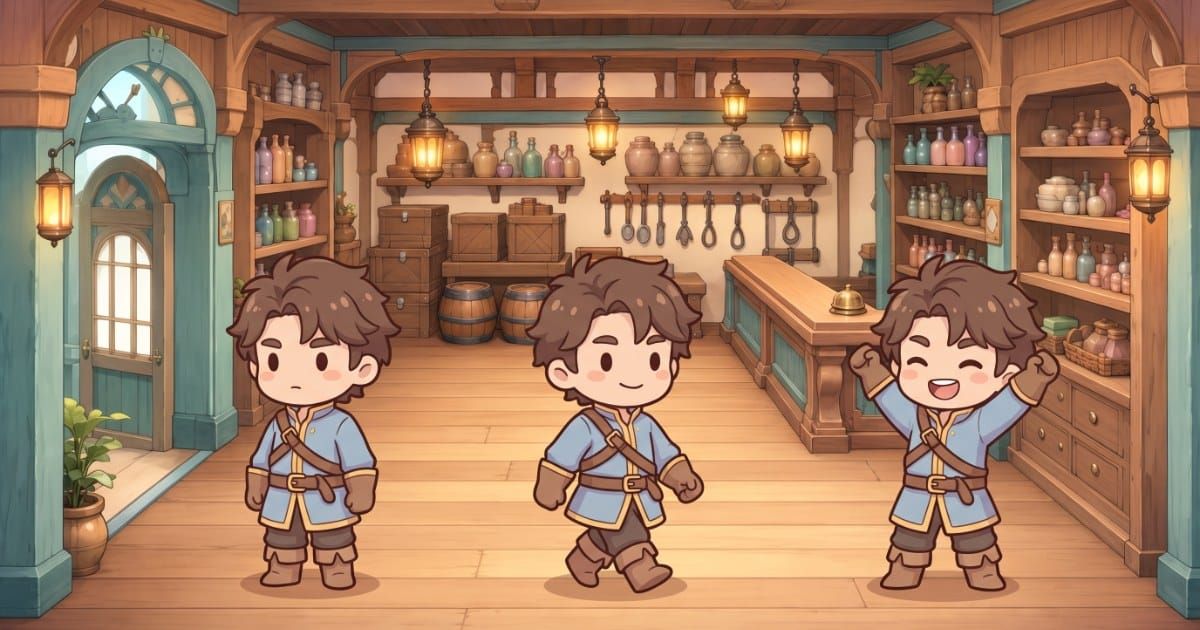
Your character looks right in idle. Then it starts walking and suddenly it is a little taller, or its feet drop below the floor, or the whole body seems to swell when it celebrates. Nothing in your code touched its size, yet every animation switch makes it pop.
This is almost always a setup problem, not an art problem. There are three causes: the sprite sheets were baked at different cell heights, the pivot (origin) is set differently on each sheet, or a scale value is being applied per animation inside the engine. The fix is the same in every engine: lock one cell height for the whole character, pick one reference animation, size everything against it, and anchor every sheet at bottom center.
Below: each cause, a five-minute diagnosis, and the exact settings in Godot 4, Unity and GameMaker.
The three causes at a glance
Each cause leaves a different fingerprint.
| Cause | What you see | Where to look |
|---|---|---|
| Sheets baked at different cell heights | The body is a different height in one animation, or the feet sit higher or lower | Image dimensions of each sheet, divided by rows |
| Pivots set inconsistently | Same height, but the character hops up, down or sideways at the switch | Pivot or origin setting on each sprite or sheet |
| Per-animation scale in the engine | Everything is proportionally bigger or smaller in one animation | Pixels Per Unit on each texture, scale keys in animation tracks, node scale |
You can have more than one at once. Work through them in order, because the first changes how you fix the other two.
Cause 1: sheets baked at different cell heights
A sprite sheet is a grid of equal cells. The engine slices the sheet into frames and draws each frame at its native pixel size, scaled by whatever transform you give the node. If your idle sheet has 260 px tall cells and your attack sheet has 300 px tall cells, the engine has no idea those cells hold the same character. It just draws pixels.
Two things then go wrong. If the art fills the same fraction of each cell, the character really is a different size on screen. And even if the body is the same size in pixels, a taller cell moves the feet relative to the pivot, so the character sinks or floats at the switch.
The rule that prevents this: cell height is fixed for the whole character. Cell width is allowed to change.
Width changes are harmless because poses need different room. Arms thrown out in a celebration need a wider cell than a neutral idle. Here is how that looks on one real character, Mira Hearthkeeper, across six baked sheets:
| Sheet | Sheet size (px) | Grid | Cell (px) | Frames used | File size |
|---|---|---|---|---|---|
| walk_s | 600 x 1040 | 4 x 4 | 150 x 260 | 13 of 16 | 431 KB |
| idle | 595 x 1040 | 5 x 4 | 119 x 260 | 18 of 20 | 361 KB |
| celebrate | 1105 x 1040 | 5 x 4 | 221 x 260 | 20 of 20 | 646 KB |
| serve | 920 x 1040 | 5 x 4 | 184 x 260 | 20 of 20 | 704 KB |
| walk_n | 584 x 1040 | 4 x 4 | 146 x 260 | 13 of 16 | about 428 KB |
| walk | 584 x 1040 | 4 x 4 | 146 x 260 | 13 of 16 | about 428 KB |
Cell height is 260 px on all six. Cell width runs from 119 px (idle) to 221 px (celebrate). The foot gap, the distance from the bottom of the art to the bottom of the cell, stayed between 2 and 7 px on every sheet. That is the pattern you want: one height, floating widths, feet on a consistent line.
For a full breakdown of grid layout and naming, see the sprite sheet spec, and for how large a sheet should be overall, see how big a sprite sheet should be.
Cause 2: pivots set inconsistently
The pivot (Unity) or origin (Godot, GameMaker) is the point on the sprite that sits exactly on the object's position. When you switch animations, the engine keeps the position and swaps the image around that point. If the point means "center of the cell" on one sheet and "bottom of the feet" on another, the art jumps.
The center pivot is the most common trap, because it is the default in two of the three big engines:
- Godot 4:
Sprite2DandAnimatedSprite2Dboth havecenteredset totrueby default, so the texture's center sits on the node's origin. - Unity: a single sprite's pivot is chosen from a preset list (Center, Top Left, Bottom and so on) or set to Custom. Pivot values are normalized, from (0, 0) at the bottom left of the sprite to (1, 1) at the top right.
- GameMaker: the origin defaults to the top-left corner of the sprite. Each sprite asset has its own origin, and each animation is usually its own sprite asset.
A center pivot works only if every cell is the same height. With a 260 px cell, the center is 130 px above the bottom. Give one sheet a 300 px cell and its center is 150 px above the bottom, so that animation draws 20 px lower than the others. A bottom-center pivot removes the problem: the bottom of every cell lands on the position no matter how tall the cell is.
Other object types need other pivots (a spinning coin wants its center, a door wants its hinge), but for characters the answer is short: bottom center, every sheet, every time.
Cause 3: scale applied per animation in the engine
The third cause is invisible in the image files. The art is fine, the pivots are fine, and the character still changes size because the engine scales one animation differently.
Unity Pixels Per Unit. Every texture has its own Pixels Per Unit (PPU) value: the number of pixels in the image that equal one world unit. If walk_s is imported at PPU 100 and idle at PPU 120, the same 260 px tall cell becomes 2.6 units tall in one animation and about 2.17 units in the other. That is a 17 percent size jump from a single import field. Unity's own pixel-perfect sprite guidance is blunt about this: set all sprites to the same Pixels Per Unit value.
Scale keys in animation tracks. In Godot's AnimationPlayer or Unity's Animator, it is easy to key the node's scale while fixing something in one clip. That key then plays every time the clip plays. Check every track for scale keys you did not mean to add.
Scale set in code. A script that sets scale on a state change (to make an attack "feel bigger") does exactly that. For squash and stretch, use a short tween that returns to 1.
In Godot, AnimatedSprite2D has one centered flag and one offset for the whole node, shared by every animation in its SpriteFrames resource. You cannot get per-animation offsets by accident, but a sheet with a different cell height has nowhere to hide.
Diagnose it in five minutes
- List every sheet's cell size. Divide sheet width by columns and sheet height by rows. Write it in a table like Mira's above. If any cell height differs, you have found cause 1.
- Check the pivot on every sheet or sprite. In Unity, open each texture's Sprite Editor. In GameMaker, open each sprite. In Godot, check
centeredandoffseton the node. Mixed settings mean cause 2. - Check PPU and scale. In Unity, compare Pixels Per Unit across all of the character's textures. In any engine, search the animation tracks for scale keys and your scripts for scale assignments. Any difference means cause 3.
- Draw a floor line. Put a thin horizontal line at the character's position and cycle through every animation. The feet should touch it within a few pixels on every frame.
- Overlay two frames. Stack the first frame of idle and of walk at 50 percent opacity and compare head height.
The fix: one height, one reference, bottom center
Once you know the cause, the repair is a short procedure. Do it once per character and the problem does not come back.
- Pick a reference animation. Use the one the player sees most, usually idle or the main walk. Everything else is sized to match it.
- Lock the cell height. Choose one cell height for the character and rebake or re-export any sheet that differs. Let the width float to fit each pose.
- Match the body height inside the cell. The head should reach the same height above the feet in every animation's neutral frames. Compare against the reference, not against the cell edge.
- Keep the foot gap consistent. Bottom of the art to bottom of the cell should be within a few pixels across sheets. Mira's 2 to 7 px range is a good target: under 3 percent of a 260 px cell.
- Anchor bottom center. Set the pivot or origin to the bottom center of every cell, on every sheet.
- Use one scale value. One PPU for every texture in Unity, a scale of 1 on the sprite node, no scale keys in clips.
- Test on the floor line. Cycle every animation in game and check feet and head height against the reference.
Engine settings that keep it fixed
| Engine | Pivot setting | Scale setting | What to set |
|---|---|---|---|
| Godot 4 | centered and offset on AnimatedSprite2D or Sprite2D |
Node scale |
Keep centered on and set offset to (0, minus half the cell height), for example (0, -130) for a 260 px cell. +Y is down in Godot, so a negative y lifts the art until the cell bottom sits on the origin. One value works for every sheet because the cell height is shared. |
| Unity | Sprite Editor Pivot (Bottom, or Custom) and Pivot Unit Mode | Pixels Per Unit on each texture | Pivot Bottom for every sliced frame, or Custom with Pivot Unit Mode set to Pixels if you want to put the pivot exactly at the feet. Same PPU on every texture. |
| GameMaker | Sprite origin (default top left) | Instance scale | Set each sprite's origin to the Bottom Centre preset, or call sprite_set_offset(spr, cell_width / 2, cell_height). Offsets are measured from the sprite's upper-left corner. |
If you want the pivot exactly on the feet rather than the cell bottom, add the foot gap: in Godot, raise offset.y by the gap (for example, -125 instead of -130 for a 5 px gap); in Unity, use Custom pivot in Pixels with y equal to the gap; in GameMaker, subtract the gap from the y origin.
Matching a second character to the cast
The same rules scale up from one character to a cast. When you add someone new, you are not matching their sheets to their own idle anymore. You are matching them to everyone else.
Cal Voss, the young armorer in Wayfarer's Hearth, was added to an existing cast this way: sized to match the cast at 230 px, anchored bottom center, using a reference animation in the Asset Manager. The cast's concept canvases follow the same logic as Mira's sheets, with height locked at 560 px and width floating between 295 and 311 px.
That consistency lets characters stand side by side at believable relative heights. For the design side of that decision, see character scale relationships, and for the full workflow of adding a new character that fits, see how to add a second AI character that matches your first.
Doing this in Makko
In Art Studio, animations are generated inside a Collection, which binds the character's look, feel and style across every sheet. The sprite editor lets you resample frames and bake the result into a sprite sheet. If you are cleaning up an animation before baking, this guide to turning a rough AI animation into a clean sprite sheet covers that step.
In Code Studio, the Asset Manager handles the sizing step directly: it right-sizes a character against a reference animation and anchors it bottom center, which is the procedure above done for you. You stay human-in-the-loop where you want to be, choosing which animation is the reference and checking the result in your game.
FAQ
Why does my sprite get bigger when it switches animations?
The most common reason is that the new animation's sprite sheet uses a different cell height or a different import scale. In Unity, check that every texture has the same Pixels Per Unit value. In any engine, check that the cell height is the same on every sheet for that character.
Why does my character jump up or down when the animation changes?
The pivot or origin is in a different place on the two animations. A center pivot moves if the cell heights differ, and GameMaker's default top-left origin moves with any size change. Set every sheet's pivot to bottom center and the feet will stay on the same line.
Is it a problem if my sprite sheets have different widths?
No. Cell width can change from animation to animation because different poses need different room. Keep the cell height fixed and anchor at bottom center, and width differences will not change the character's size or position.
What should I use as the reference animation?
Use the animation the player sees most, usually idle or the main walk cycle. Size every other animation so the head and feet line up with that reference in neutral frames.