
Why Your Character Sinks Into the Floor
2D character sinking into the ground? Check the pivot, the collision shape, the floor collider and draw order. Fixes for Godot, Unity and GameMaker.
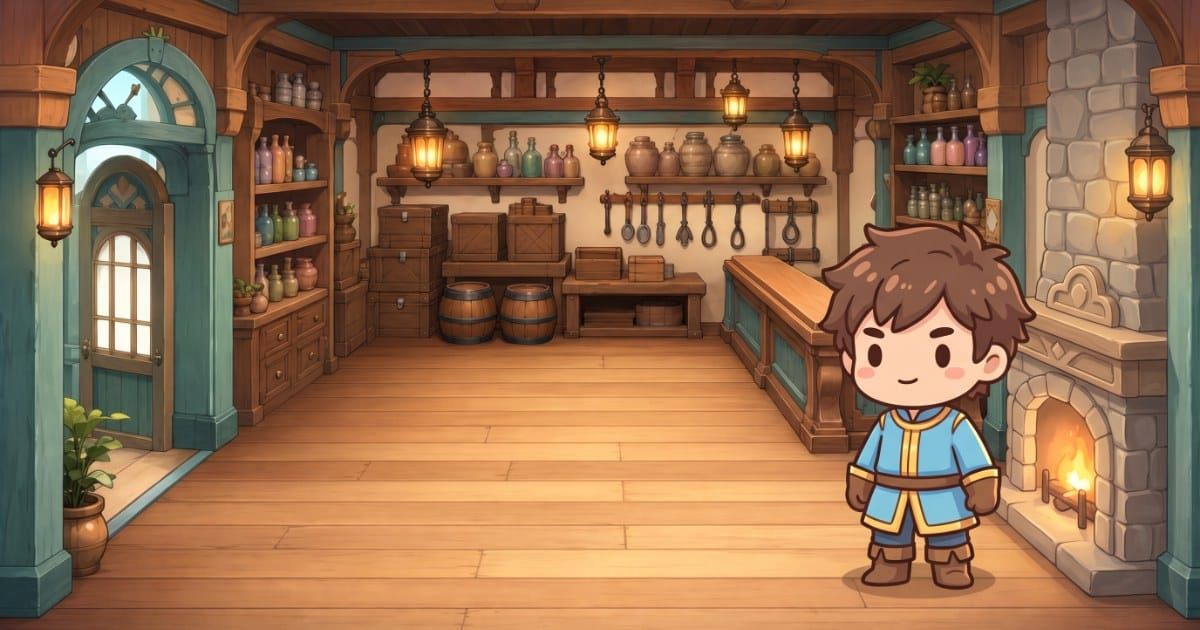
You drop your character into the level, press play, and its feet disappear into the floor. Sometimes it is a few pixels. Sometimes it is up to the knees. Sometimes it only happens in one animation.
A character sinking into the ground in a 2D game comes down to one of four setup problems: the sprite's pivot is not at the feet, the collision shape does not end at the feet, the floor's collision surface sits lower than the floor you can see, or the floor is simply drawing on top of the feet. Each has a quick test and a fix, and none of them require redrawing the art.
Work through them in the order below. The first one is responsible for most cases.
The four causes and their tests
| Cause | Typical depth | Quick test | Fix |
|---|---|---|---|
| Pivot not at the feet | Half the sprite height, or a fixed amount | Put the character at a known floor y with physics off | Bottom-center pivot |
| Collision shape lower than the art | Constant few to many pixels | Turn on collision shape debug view | Move the shape so its bottom is at the pivot |
| Floor collider lower than the drawn floor | Constant across all characters | Check if every character sinks the same amount | Move the floor collider up to the visible top edge |
| Floor drawn on top of the feet | Only the feet look cut off | Hide the floor layer | Fix draw order or z index |
Two smaller effects can add a pixel or two of float or overlap: physics margins in the engine, and the transparent foot gap under the art. Those come last.
Cause 1: the pivot is not at the feet
The pivot (or origin) is the point of the sprite that lands on the object's position. If you put a character at the floor's y coordinate, the pivot lands on the floor. If that pivot is the center of the sprite, half the character is now under the floor.
This is the most common cause because of defaults. In Godot 4, Sprite2D and AnimatedSprite2D are centered by default. In Unity a sprite's pivot is often left at Center. GameMaker starts every sprite with a top-left origin, which puts the art below and to the right of the position, so the whole character hangs down from the point you placed it.
Test: disable physics or gravity, set the character's y to exactly the floor's top edge, and look. If the sink is about half the sprite's height, the pivot is centered.
Fix: move the pivot to bottom center.
- Godot 4: keep
centeredon and setoffsetto(0, -half the frame height). For a 260 px frame,(0, -130). +Y is down in Godot, so negative y lifts the art. - Unity: in the Sprite Editor, set the pivot to the bottom-center preset, or Custom with Pivot Unit Mode set to Pixels.
- GameMaker: set the origin to Bottom Centre in the Sprite Editor, or call
sprite_set_offset(spr, width / 2, height).
If the sinking only happens in one animation, the cause is the same family: that sheet has a different cell height or pivot from the others. Why your character changes size between animations covers that case in depth, and sprite pivot points covers where to put the pivot on every kind of object.
Cause 2: the collision shape does not end at the feet
The physics engine does not see your sprite. It sees the collision shape, and it stops that shape on top of the floor's shape. If the bottom of the character's collision shape sits above the sprite's feet, the feet will hang below the floor by the difference.
This happens when the shape is drawn by eye, or set up before the pivot was moved.
Test: turn on the collision debug view. In Godot, that is Debug > Visible Collision Shapes in the editor's top menu, which draws every shape in the running game. In Unity, select the object and look at the collider outline in the Scene view. In GameMaker, compare the sprite's collision mask bounding box with the art in the Sprite Editor.
Fix: align the bottom of the collision shape with the pivot. With a bottom-center pivot, the shape should extend upward from the origin and end exactly at it.
A good reference is Celeste, whose developers published the player class source. The player's normal hitbox is new Hitbox(8, 11, -4, -11): 8 px wide, 11 px tall, starting 4 px left of and 11 px above the origin. That box runs from 11 px above the origin down to the origin itself. The bottom of the collider is the pivot, and the pivot is the feet.
| Engine | Where the shape lives | Rule |
|---|---|---|
| Godot 4 | CollisionShape2D child of a CharacterBody2D |
Move the shape node up so its bottom edge sits at y = 0. Resize with the shape's handles, never the node's scale. |
| Unity | Collider 2D component (Box, Capsule) | Set the collider offset so its bottom is at the pivot. |
| GameMaker | Sprite collision mask, or a separate mask sprite via mask_index |
Set the mask's bottom edge to the origin's y. |
Godot's physics documentation is explicit about scale: keep the collision shape's Scale at (1, 1) and change size with the size handles, because scaling a shape can result in unexpected collision behavior.
Cause 3: the floor's collider is lower than the drawn floor
If every character sinks by the same amount on one surface, the problem is the floor, not the characters.
Tile floors often have a drawn top edge (grass, a rug lip, a board edge) a few pixels below the tile's top, while the collision covers the full tile. Or the collision polygon was drawn lower than the visible surface.
Test: stand two different characters on the same floor. If both sink the same amount, check the floor.
Fix: move the floor collider's top edge to the visible walking surface. In Godot, edit the physics polygon on the tile in the TileSet. In Unity, adjust the tile or the static collider's shape. In GameMaker, adjust the solid object's mask or the collision tile.
Pick one rule for where "the floor" is on your floor art (the top edge of the boards, say) and apply it to every floor tile.
Cause 4: the floor is drawing on top of the feet
Sometimes the character stands exactly where it should, and the floor or a foreground layer draws over its feet. It looks like sinking but is a draw order problem.
Test: hide the floor or foreground layer. If the feet reappear at the right height, it is draw order.
Fix:
- Godot 4: raise the character's
z_index, or put the floor on a layer that draws first. If you usey_sort_enabled, remember that nodes sort relative to each other only if they are on the samez_index. - Unity: put characters on a Sorting Layer above the floor, or raise Order in Layer.
- GameMaker: give the floor layer a higher depth than the instance layer. Lower depth draws closer to the camera.
The small stuff: margins and foot gaps
After the four fixes, a pixel or two of difference is normal. It comes from two places.
Physics margins. Engines keep shapes from fully touching to stay stable. Godot's CharacterBody2D has a safe_margin (default 0.08 px) used for collision recovery in move_and_slide. Unity's Physics 2D settings have a Default Contact Offset, a proximity distance at which colliders count as touching even when they are not. These produce tiny gaps, not visible sinking.
Foot gap in the art. Baked sprite sheets usually leave a few transparent pixels under the feet. On one character measured across six sheets, that gap stayed between 2 and 7 px in 260 px tall cells. With a pivot at the cell bottom, that shows as a slight float, not a sink. If you want the soles exactly on the line, move the pivot up by the gap. The sprite sheet spec covers how cells and padding are laid out.
Doing this in Makko
In Code Studio, the Asset Manager anchors characters at bottom center when it right-sizes them against a reference animation, which handles cause 1 for characters you bring into a project. You can then @-mention the character asset in the AI code assistant and ask it to set up a collision shape whose bottom edge sits at the character's origin, and check the result with your engine's debug view.
FAQ
Why does my 2D character sink into the ground?
Usually the sprite's pivot is at its center instead of its feet, so placing it at floor height puts half the body below the floor. If the pivot is correct, check whether the collision shape ends above the feet, whether the floor's collider is lower than the drawn floor, or whether the floor layer is drawing over the character.
Why does my character only sink in one animation?
That animation's sprite sheet has a different cell height or pivot from the others. With a center pivot, a taller cell draws the feet lower. Use the same cell height for every sheet of the character and set every pivot to bottom center.
How do I see collision shapes in Godot?
Enable Debug > Visible Collision Shapes in the editor's top menu, then run the game. Every collision shape is drawn in the running project, so you can compare the character's shape with its sprite and the floor.
Why is there a tiny gap between my character and the floor?
Physics engines keep a small margin so shapes do not overlap, such as Godot's safe_margin on CharacterBody2D and Unity's Default Contact Offset. Sprite sheets also often have a few transparent pixels under the feet. Both produce a gap of a pixel or a few pixels, which you can hide by moving the pivot up slightly.