Godot Game Art Workflow: How to Produce Art Without Drawing
Godot's official animation tutorial begins after you already have your frames. This is the weekly loop that produces them, plus the exact import settings and the AnimatedSprite2D vs AnimationPlayer decision nobody writes down.
Godot's official 2D sprite animation tutorial opens with this sentence: "Typically, when you create or download an animated character, it will come in one of two ways." Then it moves on to slicing frames.
Creating the character is the sentence it skips. That skipped half is most of the work, and it is where solo developers stall out. Not on AnimatedSprite2D, which takes ten minutes to learn, but on producing eight coherent frames of a run cycle.
The filled-in spec this article walks through lives on its own page: the Godot 2D art production spec, with a blank template you can copy.
This is the workflow we use to fill that gap. It runs on a fixed weekly cadence, so drift gets caught at asset five instead of asset forty. It ends with sprites that look in the running game exactly the way they look in the file. And it does not require you to draw.
The short version. Make one character sheet before you make any animations. Bake every animation for that character at one frame size. Set Default Texture Filter to Nearest before you import anything. UseAnimatedSprite2Dunless you need to move the node itself, in which case useAnimationPlayer. Budget the week as three days of art and two days of integration, not five days of art.
Why the pipeline breaks where it breaks
The failures that cost a weekend are almost never engine failures. They are consistency failures that only become visible once assets sit next to each other in a scene.
Four recur:
- Frame size drift. The idle bakes at 512×512, the run bakes at 640×512 because the character's stride is wider. Now the sprite jumps a few pixels every time the animation changes.
- Style drift. Asset one and asset forty were generated weeks apart. Individually both are fine. Together they look like two games.
- Soft pixels. The art is sharp in the file and blurry in the running game, because Godot's default texture filter is linear.
- Baked-in shadows. The character ships with a drop shadow painted into the sprite, and then the engine casts a second one.
Frame size drift
The idle bakes at one size, the run bakes wider because the stride is wider, and the sprite jumps a few pixels every time the animation changes.
Style drift
Generated weeks apart. Individually both are fine. Together they look like two games.
Soft pixels
Sharp in the file, blurry in the running game. It is a project setting, not an art problem.
Baked-in shadows
The character ships with a drop shadow painted into the sprite, and then the engine casts a second one.
Every one of those is prevented earlier in the pipeline than where it shows up. That is the whole argument for having a fixed loop rather than making assets on demand.
The weekly loop
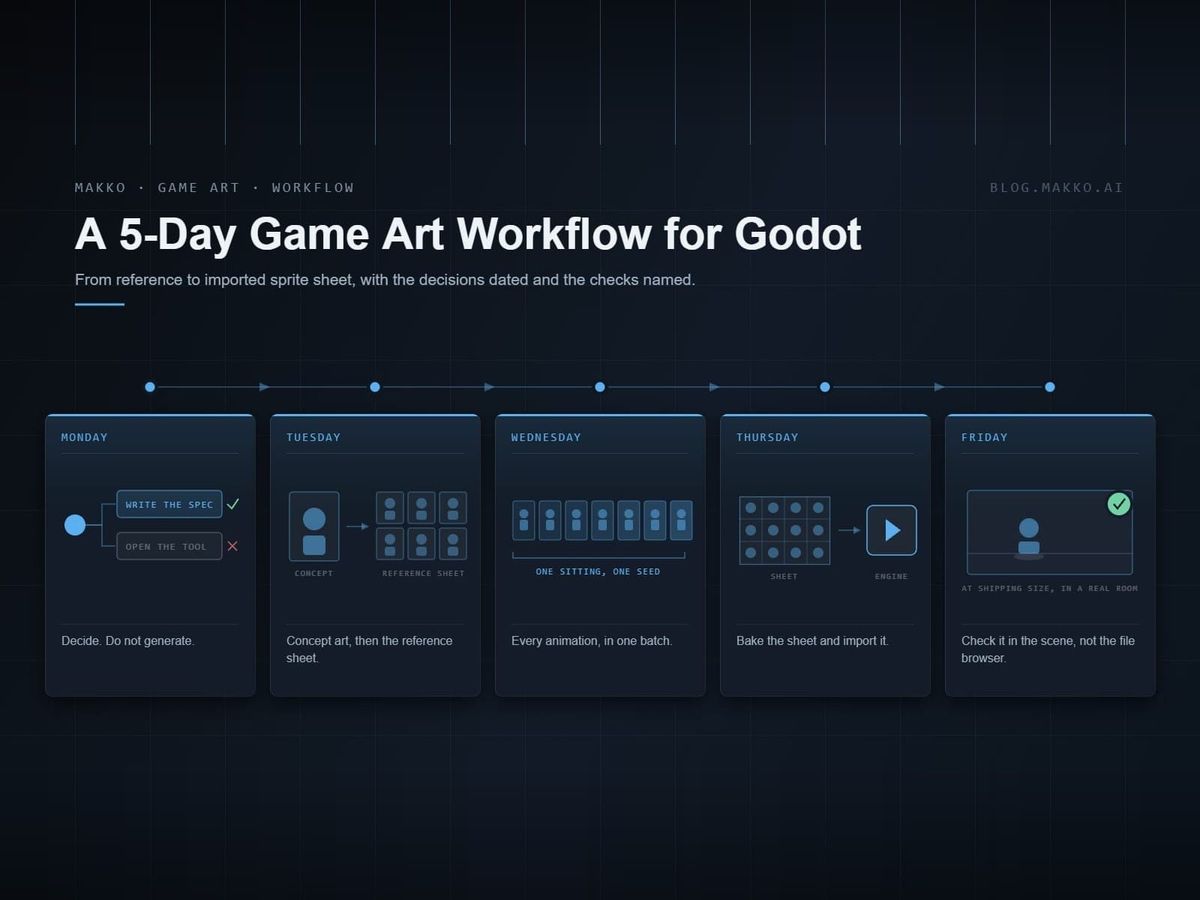
Five days, structured so integration problems surface on Wednesday rather than Sunday night.
Monday. Decide, don't generate
Write down what you need before you make anything: which character, which animation set, which rooms they appear in. Then check the new work against the rules you already set for the project. If you have not written those rules down yet, that is the first job. We keep ours in a filled-in art bible, which is mostly a set of numbers you can check an asset against.
The two numbers that matter most on Monday are canvas size per asset class and the saturation gap between characters and backgrounds. Fixing either one later means regenerating, not editing.
Tuesday. Concept art, then the reference sheet
Make the character once, front on, full body, on a plain background, arms clear of the torso so nothing is occluded. This single image is the reference every animation is generated against. It is not a throwaway.
Then produce the reference sheet from it. This is the step most people skip, and skipping it is the single biggest cause of a character changing appearance between the walk and the attack. An animation generated from a lone concept image has one view to work from. An animation generated from a reference sheet has the character's proportions, hardware and color placement pinned from several angles, and it holds together far better across motions.
Wednesday. Animations, in one batch
Generate the full set in one sitting from the same reference sheet: idle, walk, run, jump, attack, hit reaction, death. Doing them in one batch matters more than it sounds. Batches generated weeks apart drift, and you will not notice until you flip between them in the engine.
Frame budgets that hold up in 2D action games:
| Animation | Frames | Notes |
|---|---|---|
| Idle | 3–4 | Loops constantly. Keep it subtle; big idle motion reads as twitching. |
| Walk | 6–8 | First frame identical to last, or the loop pops. |
| Run | 6–8 | Same loop rule. More vertical travel than the walk. |
| Jump | 4–6 | Usually split into rise and fall rather than looped. |
| Attack | 8–12 | Needs visible anticipation and recovery, not just the contact frame. |
| Hit reaction | 2–3 | Short. It gets interrupted constantly. |
| Death | 6–10 | The one animation that does not loop. |
Thursday. Bake and import
Bake every animation for one character at an identical frame size. Pick the size from the widest pose in the set, usually the attack or the run, and make everything else match it. A character whose frames are all 640×512 with empty space around the idle is correct. A character whose frames are individually cropped is a bug you will chase for hours.
Once the frames exist, the sheet they get packed into has its own constraints: the largest texture the target hardware accepts, and the memory the sheet occupies whether or not you filled every slot. Pick the smallest power-of-two sheet whose slot count clears your frame count. The frame size, slot budget and memory maths are worked through in the sprite sheet spec.
Friday. Check it in the scene, not in the file browser
Composite the character onto your brightest room and your darkest room and look at both. This is the test that catches separation failures, and it needs human eyes. If the character disappears into either one, the fix is almost always to desaturate the room rather than brighten the character.
Godot settings, with exact paths
Do these before importing art, not after. Changing the texture filter later requires reimporting.
viewport renders low and scales the whole image, for a strict retro look. canvas_items renders UI and camera movement at display resolution. Smoother, but sprites can land on fractional pixels.Stop the blur
Go to Project → Project Settings → Rendering → Textures and set Default Texture Filter to Nearest.
This is the single most common complaint about pixel and low-resolution art in Godot 4, and it is a project setting rather than an art problem. Godot's default is linear filtering, which smooths between pixels. That is correct for high-resolution art and wrong for anything where you want hard edges.
Set the viewport before you set the art size
Under Project → Project Settings → Display → Window:
- Viewport Width / Height: the resolution your game renders at. Common 16:9 choices are 320×180, 426×240, 568×320 and 640×360.
- Stretch Mode:
viewportrenders at the low resolution and scales the whole image, which gives a strict retro look.canvas_itemsrenders UI and camera movement at display resolution, which is smoother but lets sprites land on fractional pixels. - Scale Mode: set to
integerto force whole-number scaling. This eliminates the uneven pixel sizes you get when the window is at an awkward ratio. Available from Godot 4.3.
Some of these live under Advanced Settings, which is a toggle in the top right of the Project Settings window.
AnimatedSprite2D or AnimationPlayer
Godot supports both, the docs explain both, and the docs' closing advice is to "experiment to see what works best for your needs." That is honest but not much help when you are picking a node at 11pm. Here is the rule we use.
AnimatedSprite2D
Named states you swap between
- CharacterBody2D
- └─ AnimatedSprite2D
- └─ SpriteFrames
- ├─ idle
- ├─ run
- └─ attack
Animations are named and stored in a SpriteFrames resource. Call play("run") and you are done.
Sprite2D + AnimationPlayer
Frames plus everything moving with them
- CharacterBody2D
- ├─ Sprite2D
- └─ AnimationPlayer
- ├─ frame
- ├─ position / scale
- └─ call / signal tracks
Keyframes any property on any node, so hitboxes, offsets and sound cues stay locked to the frame that triggers them.
| Situation | Use | Why |
|---|---|---|
| Swapping between named animation states | AnimatedSprite2D | Animations are named and stored in a SpriteFrames resource. play("run") and you're done. |
| Animating the sprite and its position, scale or rotation together | AnimationPlayer | It can key any property on any node, not just the frame. |
| Reusing one animation set across several scenes | AnimatedSprite2D | SpriteFrames is a resource, so it saves separately and gets shared. |
| Cutscenes, coordinated multi-node sequences | AnimationPlayer | One timeline drives everything at once. |
| You want both | Both | AnimationPlayer can drive an AnimatedSprite2D. This is supported and normal. |
Setting up AnimatedSprite2D from a sheet
Select the node, and in the SpriteFrames property choose New SpriteFrames. Click the resource and a panel opens at the bottom of the editor. Choose Add frames from a Sprite Sheet, pick your file, and set the horizontal and vertical frame counts to match the sheet. Select the frames you want, add them, and rename the animation from default to something real.
The Speed (FPS) field in that panel controls playback. The default is slow for most game animation; 10 is a reasonable starting point for a walk cycle.
Setting up Sprite2D with AnimationPlayer
Drag the sheet into the Texture property of a Sprite2D, then expand the Animation section in the Inspector and set Hframes and Vframes to the number of columns and rows in the sheet. The Frame property now steps through the cells, and that is the property you key in the AnimationPlayer.
For a six-frame walk: create an animation, set its length to 0.6, turn on looping, and key the frame property every 0.1 seconds from 0 through 5.
The glitch frame nobody warns you about
Calling play() does not take effect immediately. It applies the next time the AnimationPlayer is processed, which may be the following frame.
play() does not take effect immediately. It applies the next time the AnimationPlayer is processed, which may be the following frame. That matters when you change an animation and another property in the same tick, like flipping the sprite as a character turns.That matters when you change an animation and another property in the same tick, like flipping the sprite as a character turns. For one frame you get the new flip with the old animation, which reads as a visual pop. If you hit this, call advance(0) straight after play() to force the update.
@onready var _animated_sprite = $AnimatedSprite2D

func _process(_delta):
    if Input.is_action_pressed("ui_right"):
        _animated_sprite.play("run")
    else:
        _animated_sprite.stop()
Rooms and tilesets run on a different loop
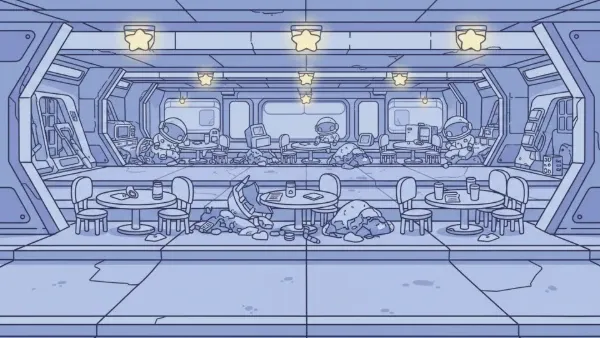
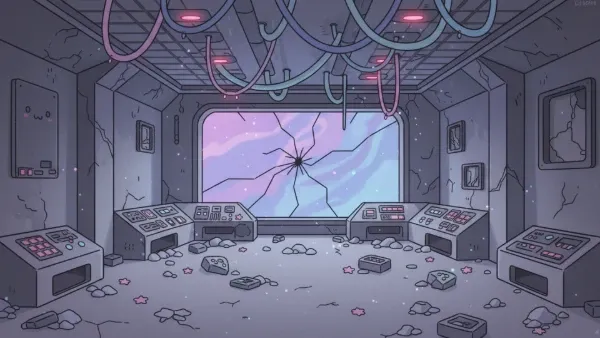
Characters are made one at a time and checked against each other. Backgrounds are made as a set and checked against the characters, which is a different problem and a different failure mode.
The rule that does most of the work: a room must sit clearly below your characters in saturation. When a character disappears into a background, the instinct is to brighten the character, and if you keep doing that you end up with a cast of neon fighting itself. Pull the room down instead. There is far more headroom at the bottom of the range than at the top.
Three things to fix before you generate a single room:
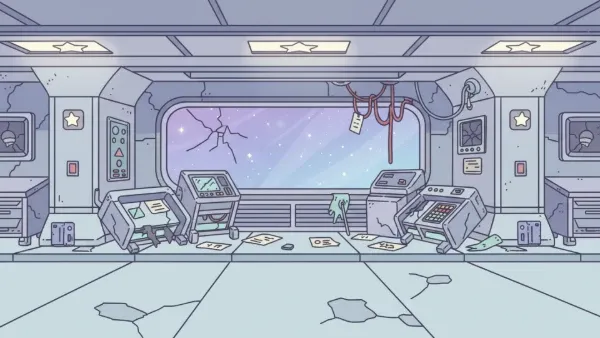 CorridorBrightest room
 Mess hallMid
 BridgeDarkest room
- One canvas size, decided now. Rooms drift in size faster than any other asset class because each one feels like a one-off. 1920×1080 is a reasonable default. Whatever you pick, write it down, because rescaling backgrounds in the engine instead of shipping them is a miserable way to spend a Friday.
- One camera. Eye level, flat on, no perspective drift between rooms. Rooms have to cut together, and a room shot from a slightly different height announces itself immediately.
- A playable band. Decide which part of the frame characters occupy, usually the lower two thirds, and keep structurally important detail out of it.
For tilesets specifically, generate the tile set as a set rather than tile by tile, and check the seams before you build anything with them. A tile that does not repeat cleanly is not a small fix.
Project structure that survives asset forty
Godot does not care how you organize your files. You will, around the point where you have six characters and cannot remember which reference sheet produced which animation.
What matters is not the exact folder layout but that three things stay findable:
- The concept art each character was built from.
- The reference sheet each animation was generated against.
- Which version of either produced the frames currently in the game.
Those are the only way to regenerate consistently later. If a character needs one more animation in three months, you want to generate it from the same reference sheet that produced the original seven, not from a fresh concept image that will drift.
A naming convention helps more than a folder tree. Something like [Game]-[Class]-[Name]-[Variant] with the class segment first, so the directory sorts by asset type rather than by whichever character you happened to make first. Godot resources, a SpriteFrames in particular, save separately and get reused across scenes, so name them as deliberately as the images.
What to check before an asset is done
Five questions, answerable with the file open:
- Is it the canvas size its asset class calls for?
- Does every animation in this character's set bake at identical frame dimensions?
- Is the first frame of each loop identical to the last, except death?
- Is there a shadow painted into the sprite that the engine is going to duplicate?
- Does it still read at the size it ships at, against both your brightest and darkest room?
- Is it the canvas size its asset class calls for?
- Does every animation in this character’s set bake at identical frame dimensions?The one that prevents the sprite jumping between states.
- Is the first frame of each loop identical to the last, except death?
- Is there a shadow painted into the sprite that the engine is going to duplicate?
- Does it still read at the size it ships at, against both your brightest and darkest room?
If asymmetric hardware sits on one shoulder, remember that sprites flip horizontally in game. The pack will swap sides when the character turns. Either keep the hardware symmetrical or accept the flip, but decide deliberately. It is invisible in the art tool and obvious in the first ten seconds of play.
Frequently asked questions
Do I need to know how to draw to make art for a Godot game?
No, but you do need to be able to judge art, which is a different skill and a learnable one. The workflow above is mostly decisions: canvas sizes, frame budgets, which room a character has to read against. The generation step is the smallest part of it.
Why does my pixel art look blurry in Godot 4?
Because the default texture filter is linear. Set Project → Project Settings → Rendering → Textures → Default Texture Filter to Nearest. If the art was already imported, reimport it after changing the setting.
Should I use AnimatedSprite2D or AnimationPlayer?
Use AnimatedSprite2D for swapping between named animation states, which is most character work. Use AnimationPlayer when you need to animate the frame alongside other properties like position or scale, or coordinate several nodes on one timeline. They also work together: AnimationPlayer can drive an AnimatedSprite2D.
What size should each animation frame be?
Whatever the widest pose in that character's set needs, applied to every animation for that character. Mixed frame sizes within one character cause the sprite to jump position when the animation changes.
How long does this loop take?
For one character with a full seven-animation set, budget a week, with roughly three days on art and two on integration and checking. The integration half is the part people underestimate.
Can I generate animations directly without a reference sheet?
You can, and the result will drift. A reference sheet pins proportions, hardware placement and color before any motion is generated, and it is the difference between a character who looks the same across seven animations and one who does not.