Sprite Animation Alignment: Anchor Points, Scale, and using Characters in multiple games
A complete walkthrough of Makko's Alignment Editor, covering how to scale characters to fit their game world, set anchor points correctly, and understand the critical difference between manifest-specific and global edits in a multi-game asset pipeline.

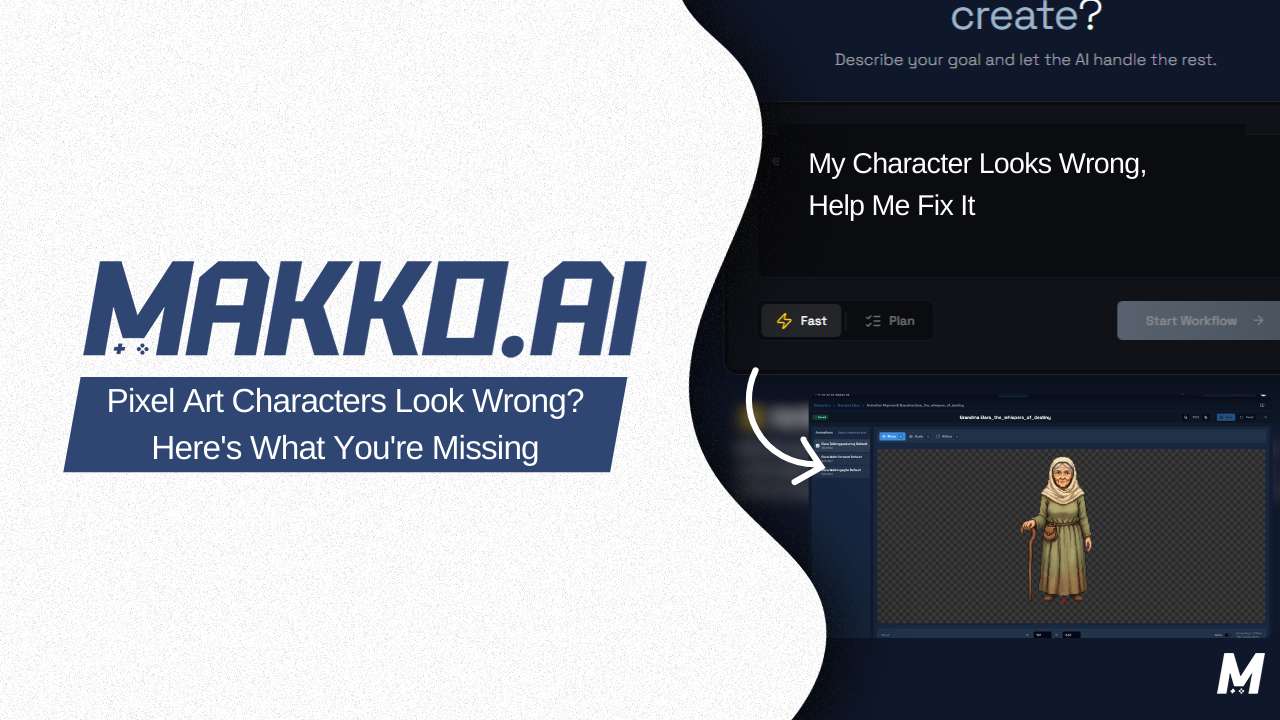
Your character has every animation it needs. The sprite sheets exist. The manifests are configured. You imported everything into the game. And the character is inside the ground. Their feet are not touching the surface — they are below it. The character moves, animates, and responds to input. But something is visibly wrong, and the reason has nothing to do with the art.
The art is fine. The problem is that nobody told the game engine where the character's anchor point is, how large they should be relative to the world they are standing in, or whether those settings should apply to every game that uses this character or just one specific configuration. These are not small details. They are the details that separate a game that feels polished from a game that feels unfinished. You can have the most carefully crafted pixel art character ever made, but if the anchor point is off by ten pixels, players will feel something is wrong even if they cannot name it.
This article covers Makko's Alignment Editor in full — how to scale your character to fit the world they live in, how to set anchor points so they connect with surfaces correctly, and how to understand one of the most misunderstood concepts in a multi-game asset pipeline: the difference between a manifest-specific edit and a global edit.
Understanding Scale: Making the Character Fit the World
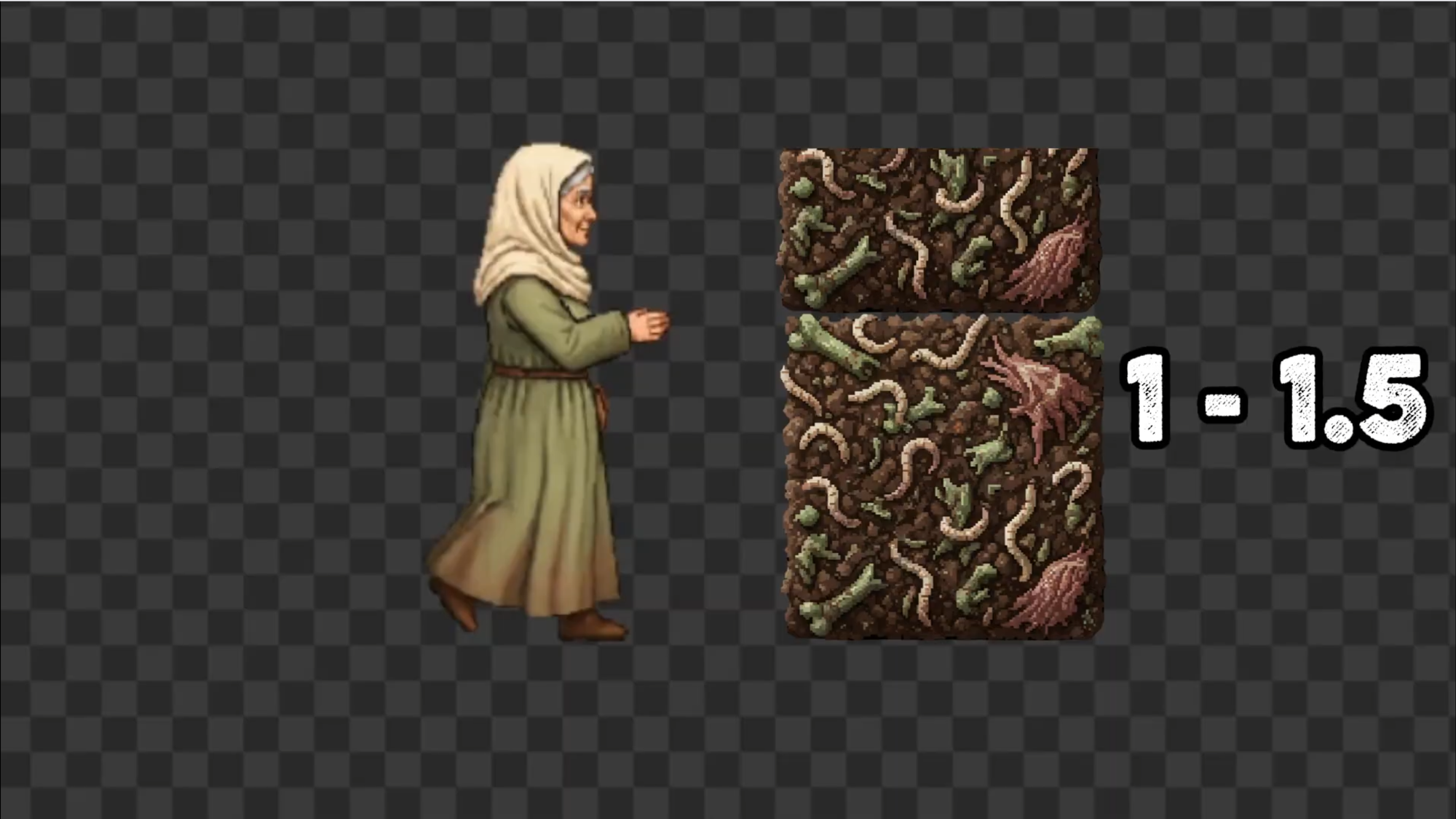
Before touching any alignment settings, you need to understand the world your character lives in. Every game has a grid, and every grid has a unit size. A Horror Platformer built on a 32x32 pixel tile grid means every platform, every wall, and every environmental object is a multiple of 32 pixels. This is standard for pixel art platformers and it is critical context, because your character needs to make visual sense within that grid.
If your character is 200 pixels tall in a world where every floor tile is 32 pixels, she will look completely out of proportion — taking up the vertical space of six floors just standing still. That is what happens when you import a high-resolution asset without adjusting the scale for the target environment. The asset is not wrong. The configuration is.
The Alignment Editor in Makko's AI Studio lets you set scale per manifest. For a 32x32 tile world, a character standing at roughly 48 to 50 pixels tall sits at one and a half tiles in height — a natural human proportion for this type of game. Dragging the scale slider down in real time lets you watch the character settle into the environment until she looks like she belongs there.
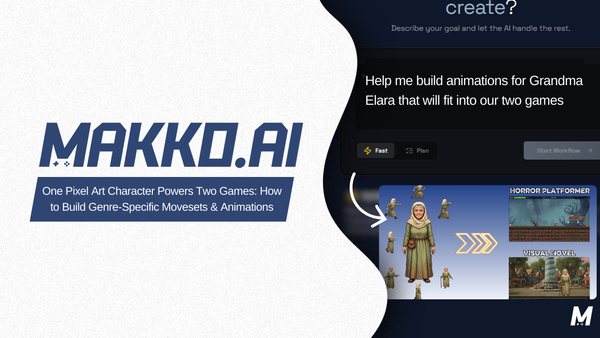
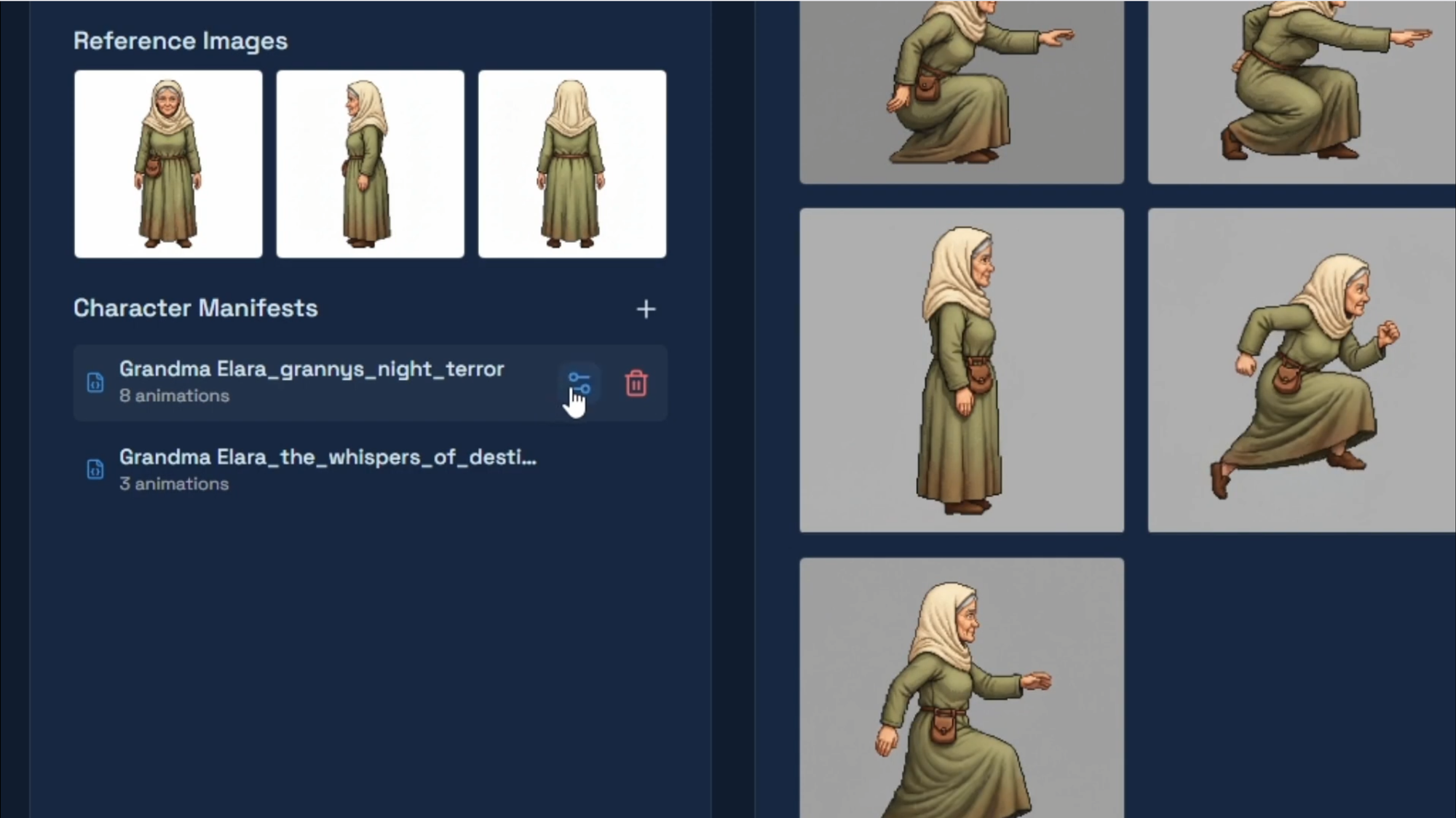
Now switch to a different manifest for the same character — say, a Visual Novel that uses her as a large detailed portrait. The scale there is set much higher because the game context demands it. These are two completely different scale values for the exact same character art, and neither one affects the other. This is the manifest system doing exactly what it was designed to do: one character, multiple contexts, zero interference between them.
Anchor Points: Grounding Your Character Correctly
Scale gets your character to the right size. The anchor point gets her to the right position. And the anchor point is almost always the reason a character ends up floating above a platform or sinking below it.
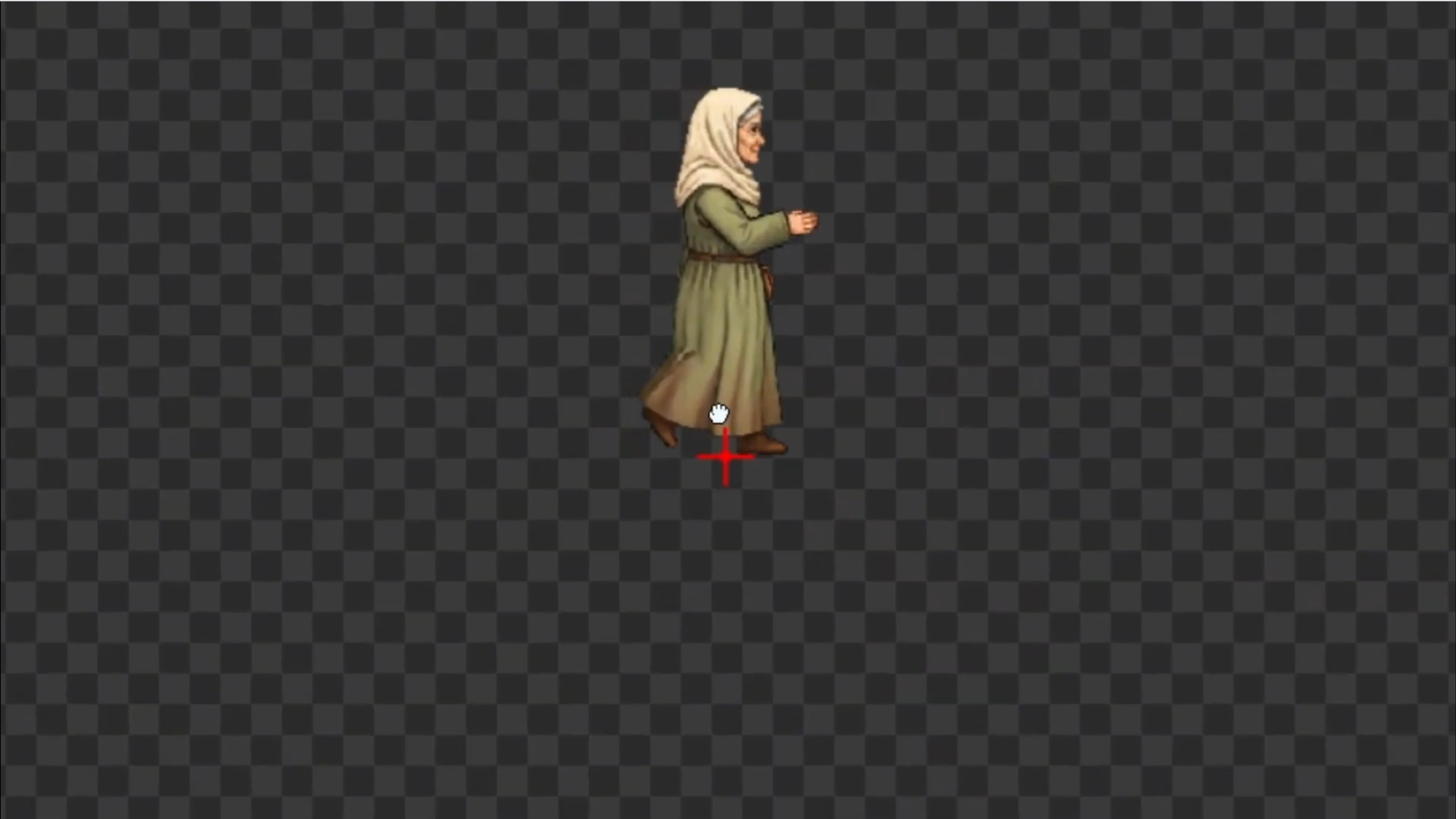
The anchor point is the single pixel coordinate the game engine uses to determine where a character physically meets the world. It is the reference point for collision, for positioning, for everything. When the anchor point defaults to the center of the sprite — which it often does — and the game engine places the character at a specific Y coordinate on a platform, it is placing the center of the character at that coordinate. Which means the feet end up below the platform surface, or floating above it, depending on the math involved.
The fix is simple once you understand the problem. For a side-scrolling platformer, the anchor point almost always belongs at the bottom-center of the character's feet. That is the point where the character physically meets the ground. When the engine places her at a Y coordinate on a platform using a bottom-center anchor, it places her feet at that point — and she looks grounded.
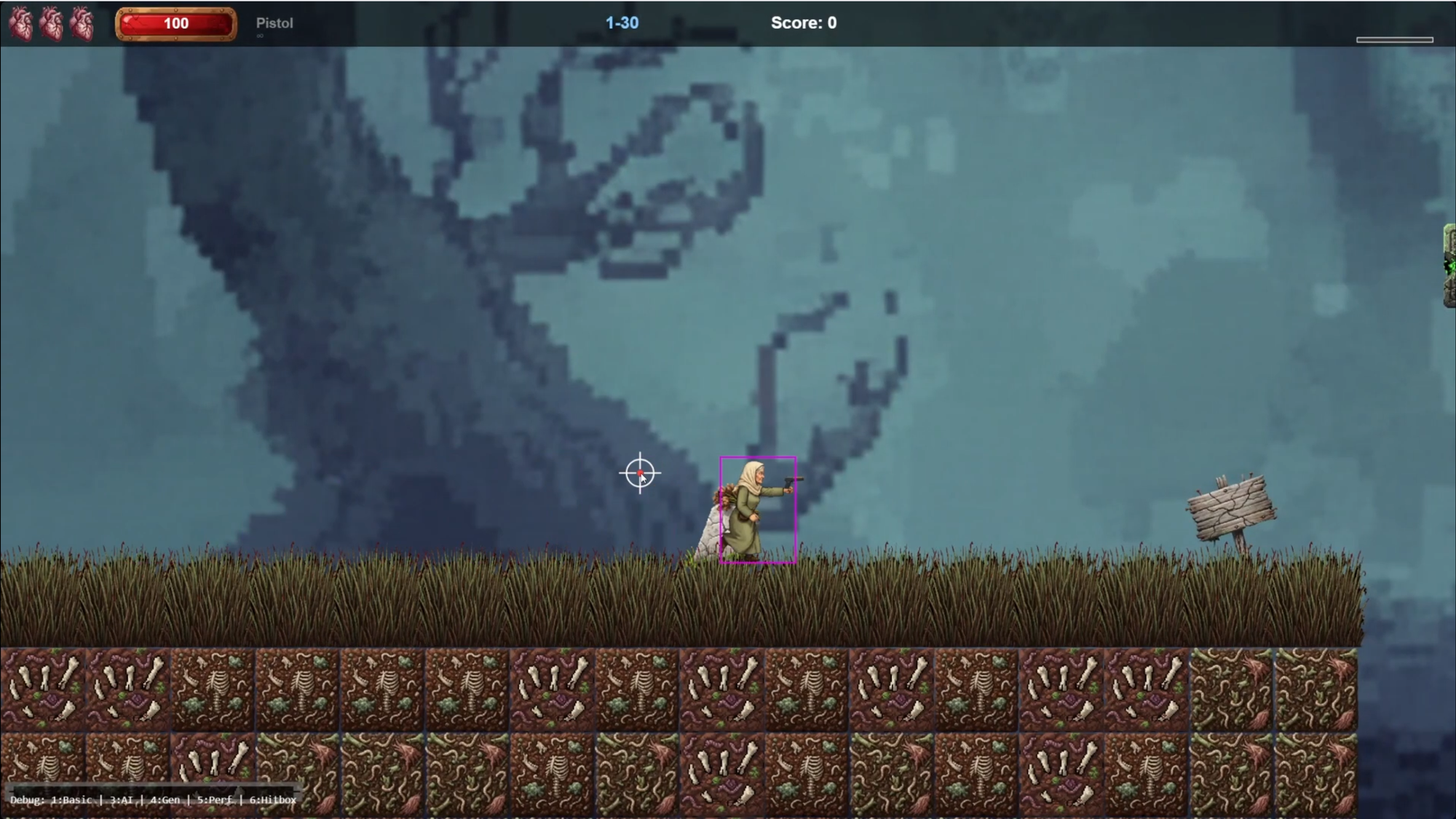
In the Alignment Editor, this means dragging the character sprite down until the anchor point crosshair sits at the bottom-center of her feet. The preview updates after updating & saving the manifest, then recompiling the game. The floating disappears. The character stands on the surface the way the player expects her to.
The same anchor logic applies to a Visual Novel manifest, but for a different reason. In visual novels, character sprites are typically positioned from the bottom of the screen and rendered upward. A bottom-center anchor point means the character appears to stand naturally in the scene frame rather than floating in the middle of it. Same principle, different context, separate manifest configuration.
The Critical Distinction: Manifest-Specific Edits vs. Global Edits
This is the most important concept in the entire Alignment Editor workflow, and the one that causes the most damage when misunderstood. Every time you make a change in the Alignment Editor, you need to know exactly where that change lives — because the answer determines whether you are configuring one game or silently modifying every game that uses this character.
A manifest-specific edit applies only to the manifest you currently have selected. If the Horror Platformer manifest is active and you drag the anchor point to the bottom of the character's feet, that change is saved only to the Horror Platformer configuration. Switch to the Visual Novel manifest and it is completely untouched. You could have the anchor point set to center-left in the Visual Novel and it would not conflict at all. The two configurations exist independently of each other, drawing from the same base character without interfering with each other's settings.
A global edit applies to the base character itself. Every Character Manifest inherits from the base character. So if you make a global change, every single manifest that references this character will be affected. Every game that uses this character will see that change — whether you intended it or not.
Confusing these two is one of the most common mistakes in a multi-game asset pipeline. You think you are adjusting one game's character. You are actually breaking every other game that uses the same base asset. The Alignment Editor makes both options available because both are genuinely useful — global edits exist for changes that truly belong at the character's core level. But manifest-specific edits are for changes that belong to a specific game's configuration, and that distinction needs to be applied deliberately every single time.
Global edit: change to the character itself.
Know which one you are making, every single time.
There is a practical cost dimension worth understanding here as well. Recreating a character from scratch to use her in a second game — remaking all animations, reconfiguring all alignment, resetting all anchor points — takes significant time and consumes credits. The manifest system exists precisely to avoid that. One base character, properly configured through separate manifests, serves every game she appears in without duplication and without rework.
Putting It Together: A Clean, Aligned Character in Both Games
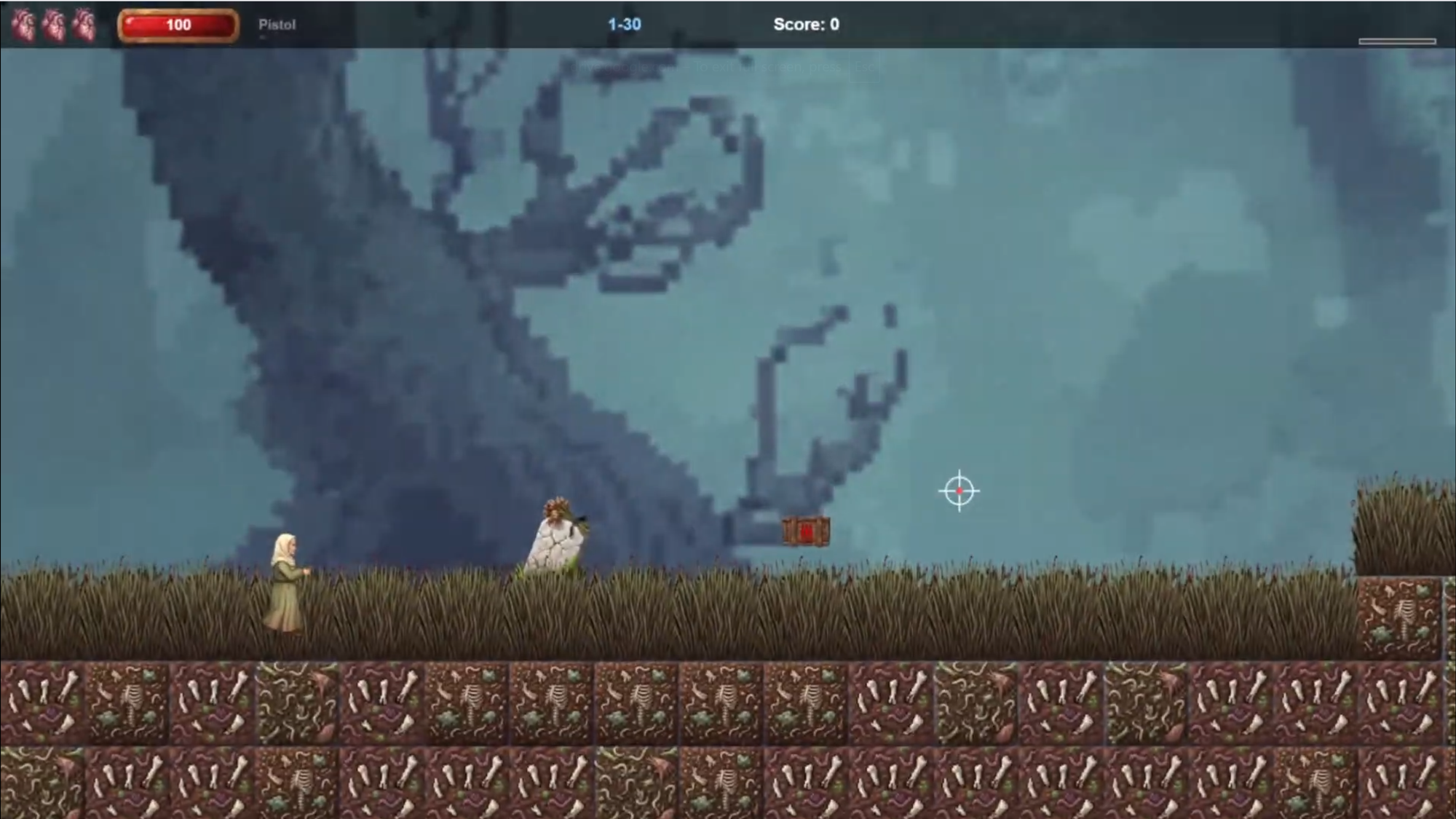
When scale, anchor points, and manifest scope are all configured correctly, the result is a character that looks right in every game she appears in — without any of those configurations interfering with each other. The character art never changes. The animations never change. What changes is how each game is told to interpret and display that character through its own manifest configuration.
A Horror Platformer manifest has Grandma Elara scaled to 48-50 pixels tall, anchored at the bottom-center of her feet, configured to sit correctly on a 32x32 tile surface. A Visual Novel manifest has the same character scaled to full portrait size, anchored at bottom-center for a different reason — so she renders naturally from the bottom of the screen upward. Two completely different display contexts. One base character. Zero duplication.
This is what a clean asset pipeline looks like in practice. Every minute spent getting these settings right in the Alignment Editor is a minute not spent debugging why a character feels broken in-game. The professional workflow is not faster because it skips steps — it is faster because it gets the foundational steps right the first time.
Quick Reference: Alignment Editor Checklist
- Identify your game's tile grid size before touching any scale settings.
- Set scale in the manifest for the target game — not globally unless the change belongs to the base character.
- For platformers, move the anchor point to the bottom-center of the character's feet.
- For visual novels, use the same bottom-center anchor — the rendering direction makes it correct for that context too.
- Before every edit, confirm whether you are in manifest-specific or global scope.
- Switch between manifests after any change to verify isolation is working as expected.
- Never recreate a character for a second game — create a new manifest for the existing base character instead.
What Comes Next: Hitboxes
Visual alignment is only one layer of the problem. The next layer is physical alignment — making sure the game engine's collision detection matches what the player sees on screen. If you have ever had a character take damage when nothing visibly touched them, or land an attack on an enemy without registering a hit, that is a hitbox problem. The next video in this series covers the complete professional workflow for hitboxes: where they are created in Makko, how to align them across different animations, and how to test them using debug boxes so you can see exactly what the engine sees during gameplay.
For detailed walkthroughs and live feature demos, visit the Makko YouTube channel.
Related Reading
- AI Character Creator vs Sprite Sheets: What's Actually Happening
- How to Add Animated Characters to a Game Using Makko
- Makko Sprite Studio Props Generator: A Pipeline Efficiency Guide
- AI Game Development as a Brick-by-Brick System: Scene Architecture, Debugging, and Sprite Animation Discipline
- State Awareness vs One-Shot Prompts: Why Your AI Game Logic Keeps Breaking
- Visual Novel Tutorial Episode 1: Getting Started With Makko AI