Sprite Sheet vs Individual Frames: When Each One Wins
"Sheets are faster" is true, incomplete, and skips the cases where individual frames are the better call. The draw-call reason sheets win, the production reason frames win, and how to get both.
This question gets asked constantly and answered badly. The usual response is "sheets are faster," which is true, incomplete, and skips the cases where individual frames are the better call. Frame size and memory budgets are covered separately in the sprite sheet spec.
The honest answer is that it depends on two things: how many different textures your renderer has to bind in a single frame, and how often your art changes. Here is how to decide without guessing.
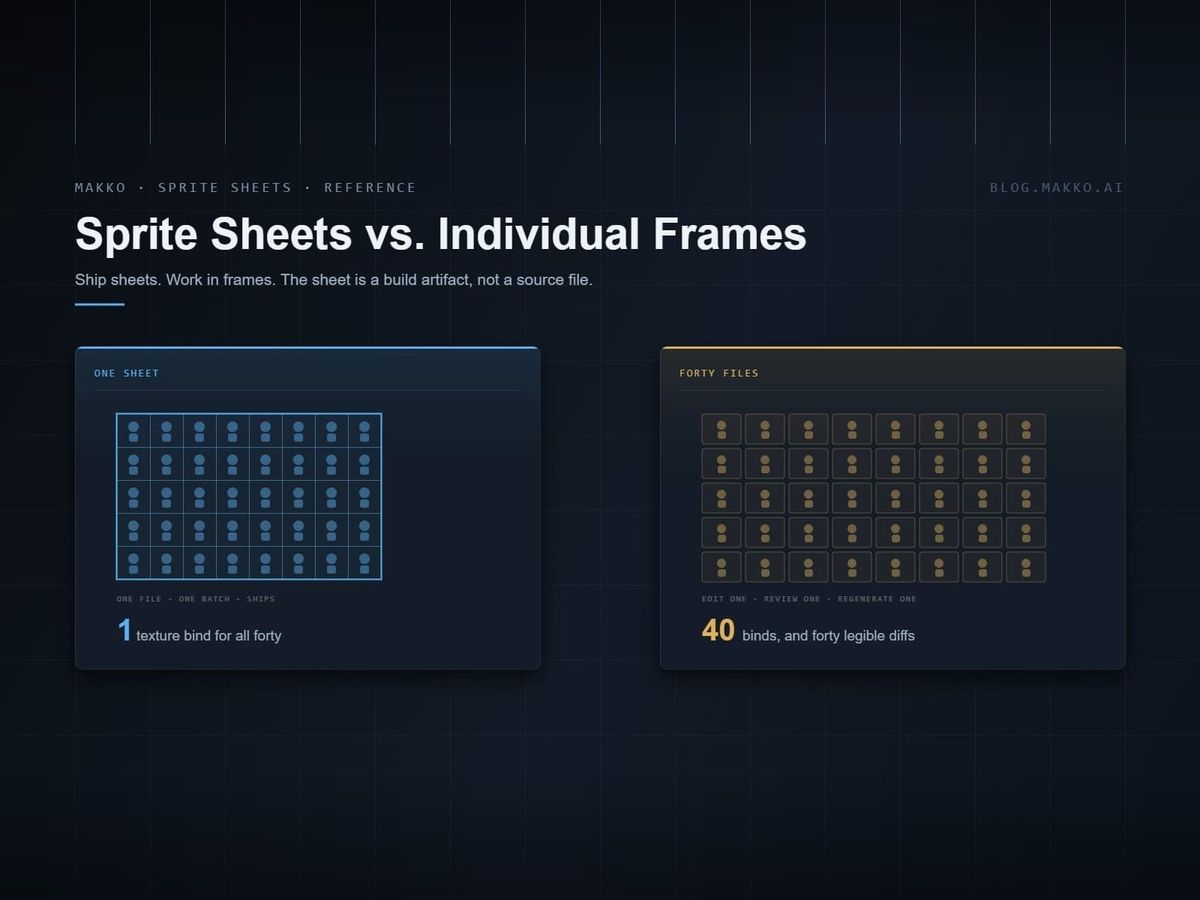
The short version. Ship sprite sheets. Work in individual frames. Sheets win at runtime because they let the renderer batch draws that would otherwise each need a texture swap; individual frames win during production because you can regenerate one animation without touching the other six. Treat the sheet as a build artifact, not a source file.
What a sprite sheet buys you
Not "speed" in the abstract. One specific thing: fewer state changes.
A 2D renderer draws sprites by submitting batches. It can only batch sprites that share the same texture. When the next sprite needs a different texture, the renderer has to flush what it has and bind the new one. That flush is the draw call, and draw calls are the thing you are counting.
Forty enemies drawn from forty individual frame files is up to forty binds. The same forty enemies drawn from one sheet is one bind and one batch. On desktop that difference may be invisible. On a mid-range phone, or in a browser, it is the difference between a smooth frame and a stuttering one.
Secondary benefits, in rough order of how much they matter:
- Fewer file reads at load time. Opening one 4096×4096 file is faster than opening 47 small ones, and dramatically faster over a network for a web build.
- Less per-texture overhead. Every texture object carries bookkeeping. Hundreds of tiny textures waste memory on structure rather than pixels.
- Predictable memory. One sheet is one allocation of a known size.
What individual frames buy you
Mostly, they buy you the ability to change your mind cheaply.
- Regenerate one animation without rebaking the set. If the attack needs another pass, you redo the attack. With a packed sheet you rebuild the sheet and everything downstream that referenced frame indices.
- Readable diffs. A changed frame is a changed file. In a packed sheet, one repositioned frame can shift every subsequent frame's coordinates, which makes version control noisy and code review pointless.
- No packing waste. A sheet is a rectangle, and your frames rarely tile a rectangle exactly. The empty space still costs full memory.
- No bleed risk. Frames in separate files cannot sample each other's edges.
The decision, in a table
| Situation | Use | Why |
|---|---|---|
| Shipping a build | Sheet | Batching and load time. This is the case the performance advice is about. |
| Actively iterating on animations | Individual frames | Change one animation without disturbing the rest. |
| Many instances of the same sprite on screen | Sheet | The batching win scales with instance count. This is where it matters most. |
| A handful of unique large sprites | Either | Not enough draw calls involved for it to matter. Pick whichever is easier to manage. |
| Web build | Sheet, strongly | Request count is a real cost over a network in a way it is not on local disk. |
| Frames of wildly different sizes | Individual frames, or a packed atlas with metadata | A uniform grid wastes enormous space when one frame is much larger than the others. |
| Art still being reviewed | Individual frames | You want legible diffs while things are changing. |
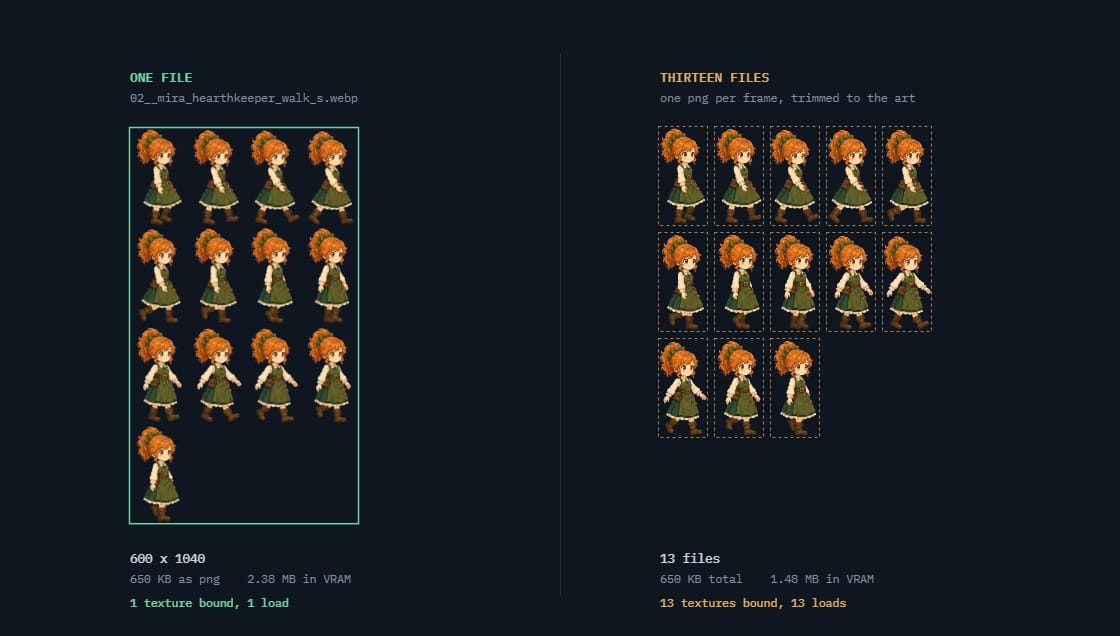 walk cycle, 13 framesone 600 × 1040 sheet against thirteen trimmed png files
Grid sheets versus packed atlases
"Sprite sheet" covers two different things, and the distinction matters more than the sheet-versus-frames question.
A grid sheet is a uniform lattice: every cell the same size, frames addressed by row and column. Engines read these natively with nothing but a frame count. In Godot you set Hframes and Vframes and step the frame property. Simple, no metadata file, and the format most engines assume by default.
A packed atlas arranges frames of arbitrary size to minimize wasted space, and ships a metadata file, JSON or plist or similar, mapping names to rectangles. More efficient, and necessary once frame sizes vary a lot, but now you have two files that must stay in sync and a tool in your pipeline that produces them.
Grid sheet
Uniform lattice, addressed by index
No metadata file. The engine needs a frame count and nothing else. Wasted space is whatever the widest pose does not use.
Packed atlas
Arbitrary rectangles plus a JSON map
Tighter packing, and now two files must stay in sync. Worth it once frame sizes genuinely vary.
For a single character with a consistent frame size, the grid sheet is almost always right. For UI icons, effects, and mixed-size props, packing earns its complexity.
Either way you still have to pick a sheet size, and the limits are not what most guides say they are. See what size a sprite sheet should be.
The rule that makes either one work
Whichever you pick, one constraint does more for you than the choice itself: every animation belonging to one character bakes at identical frame dimensions.
Take the widest pose in the set, usually the attack or the run, and make every other animation match it, empty space and all. A character whose idle is 512×512 and whose run is 640×512 will shift position on screen the moment the animation changes, and you will spend an afternoon looking for the bug in your movement code.
This is also what makes grid sheets possible at all. A uniform grid requires uniform cells, and inside a single sheet that part is not negotiable.
Across sheets there is a narrower version that also holds: what has to match is where the character sits, not what the canvas measures. Bake one animation per sheet and the frame width can differ between them, as long as the bake centers on the character. Check it with two measurements on every sheet, the gap from the bottom of the art to the bottom of the cell and the offset from the center of the art to the center of the cell, and expect both to hold within a pixel or two across the set. Matching the dimensions outright is just the version you cannot get wrong.
A workflow that gets both
You do not have to choose. Keep frames as source and generate sheets as output.
- Keep individual frames in version control, organized by character and animation. This is what you edit, review and regenerate.
- Pack sheets as a build step. A script or a packing tool turns the frame directory into sheets plus metadata.
- Never hand-edit a generated sheet. The moment you do, the source and the artifact diverge and you have lost the benefit.
- Regenerate on change. If rebuilding the sheet is one command, nobody is tempted to patch the sheet directly.
This is the same relationship as source code and a compiled binary, and it fails in the same way if you start editing the binary.
Where this sits in a full production week is covered in the Godot game art workflow.
What each engine expects
The choice is partly made for you by what your engine reads natively. All three of the common 2D engines handle both, but with different amounts of friction. The exact field names each importer asks for are in sprite sheet formats by engine.
| Engine | Grid sheet | Individual frames | Packed atlas |
|---|---|---|---|
| Godot | Native. Set Hframes/Vframes on a Sprite2D, or use "Add frames from a Sprite Sheet" in SpriteFrames. | Native. Drag images straight into a SpriteFrames resource. | Via AtlasTexture resources, one per region. Workable, more setup. |
| Unity | Native. Sprite Mode: Multiple, then the Sprite Editor slices it. | Native, one sprite asset per file. | Sprite Atlas asset packs at build time, which is the intended path. |
| Phaser | load.spritesheet() with frame width and height. | Individual load.image() calls, one request each. | load.atlas() with a JSON file. JSON Hash and JSON Array are both accepted. |
Two things follow from that table. Unity pushes you toward atlases as a build step, which is the right default and matches the source-versus-artifact split above. Phaser is the one that always pays the per-file cost, because it always ships to the browser and every individual frame is a separate HTTP request. Godot and Unity pay the same cost the moment they export to web. Phaser just never gets to avoid it.
Common mistakes
- One giant sheet for the entire game. A sheet loads as a unit. Putting every character on one texture means a scene showing one of them pays for all of them. Group by what appears on screen together.
- No padding between frames. Bilinear sampling reads adjacent pixels, so a frame can pull a sliver of its neighbor. Two transparent pixels between cells prevents it.
- Cropping each frame to its content. It looks tidy and it breaks uniform-grid playback. Keep the transparent margin.
- Sheets in source control as the only copy. When the art needs a change you will be editing pixels in a packed rectangle rather than regenerating a frame.
- Optimizing before measuring. If you are drawing twelve sprites, the packing strategy is not your bottleneck. Check the draw call count before restructuring anything.
- One giant sheet for the entire game.A sheet loads as a unit, so a scene showing one character pays for all of them. Group by what appears together.
- No padding between frames.Bilinear sampling reads adjacent pixels and pulls a sliver of the neighbour. Two transparent pixels prevents it.
- Cropping each frame to its content.It looks tidy and it breaks uniform-grid playback. Keep the transparent margin.
- Sheets in source control as the only copy.When the art changes you are editing pixels inside a packed rectangle instead of regenerating a frame.
- Optimizing before measuring.If you are drawing twelve sprites, packing is not your bottleneck. Read the draw call count first.
Adding an eighth animation six months later
This is the scenario that settles the argument, and it is worth walking through because it is the one that actually happens.
You shipped a character with seven animations. Six months in, the design calls for a dodge roll. What does each approach cost you?
With individual frames as source: generate the roll against the same reference sheet that produced the original seven, drop the frames into the character's directory, rerun the pack step. The sheet is rebuilt, the metadata is regenerated, and nothing you wrote by hand has to change. Fifteen minutes.
With a hand-maintained sheet: the new frames have to physically fit. If the sheet was full, you are moving to a larger sheet, which shifts every frame coordinate. Every index your code referenced is now wrong. If you used a grid and referenced frames by number, every number changed. An afternoon, and a class of bug that only shows up in the animations you did not think to retest.
This is the real argument for treating the sheet as a build artifact. Not elegance. The fact that games change after they ship.
Reference frames by name, not by number
The related habit that saves you here: wherever your engine allows it, address animations by name rather than by frame index.
Godot's SpriteFrames stores named animations, so play("roll") keeps working no matter where the frames physically sit. Phaser's atlas format maps names to rectangles for the same reason. Unity's Sprite Atlas resolves sprite references by asset, not by position.
Where you are stuck with raw indices. A plain grid sheet driven by anAnimationPlayer, say. Put the ranges in one constants file rather than scattering literal numbers through your movement code. When the sheet is repacked you edit one file instead of hunting.
Where this sits in the pipeline
This decision belongs to the bake and import stage, and it inherits a constraint from further upstream: one frame size per character, fixed when the animations are generated. Get that wrong and neither sheets nor individual frames will save you. The whole sequence is laid out in the Godot 2D art production spec.
Measure before you restructure
The last item on that list wastes the most time, so here is how to settle it.
Every engine will tell you its draw call count, and that number answers the question directly. In Godot, run the project and open the Debugger panel at the bottom of the editor, then the Monitors tab, and watch the raster draw call figure while the scene plays. Unity reports batches in the Stats overlay on the Game view. In a browser, a frame capture from the developer tools shows the same thing.
What to look for:
- Draw calls roughly equal to sprite count means nothing is batching, and consolidating textures will help immediately.
- Draw calls far below sprite count means batching is already working. Packing more aggressively will not buy you much.
- A number that climbs with scene complexity but stays well under sprite count is normal and healthy.
Run this against your worst scene, the one with the most enemies on screen, not a test scene with three sprites. And run it on the weakest device you intend to support. A desktop GPU will hide a draw call problem that a phone will not.
If the numbers say you are fine, believe them and go back to making the game. Sprite packing is one of the more satisfying things to optimize and one of the least likely to be your actual bottleneck.
Frequently asked questions
Are sprite sheets faster than individual images?
At runtime, yes, because sprites sharing one texture can be drawn in a single batch instead of forcing a texture bind per sprite. The gain scales with how many sprites are on screen. With a dozen sprites you will not notice; with hundreds you will.
When should I use individual frames instead?
While the art is still changing. Individual frames let you regenerate one animation without rebuilding the sheet, and they produce diffs a human can read. Pack them into sheets when you build.
What is the difference between a sprite sheet and a texture atlas?
In common use, a sprite sheet is a uniform grid of same-sized frames, read by frame index. A texture atlas packs arbitrary-sized images and ships a metadata file mapping names to rectangles. Atlases are more space-efficient; grids are simpler and supported natively by most engines.
Do all frames need to be the same size?
For a uniform grid sheet, yes. That is what makes indexing work. For a packed atlas, no, because the metadata carries each frame's rectangle. Even with an atlas, keeping one character's animations at a single frame size prevents the sprite jumping position between animations.
How many sprite sheets should a 2D game have?
Group by what is on screen at the same time rather than by category. One sheet per character for a game with a few characters, or one per scene's cast for something with a larger roster. The goal is that loading a sheet loads mostly things you are about to draw.
Does this still matter with modern hardware?
Less than it did, and more than people assume. Desktop GPUs absorb a lot of sloppiness. Mobile and browser targets still show draw call cost clearly, and browser builds pay an additional real cost per file request at load.
Why does this say MiB and not MB?
Because memory and storage are counted in different bases. A mebibyte, MiB, is 1,048,576 bytes, or two to the twentieth. A megabyte, MB, is 1,000,000 bytes. Memory is physically addressed in powers of two, so every engine profiler reports the binary figure, and the numbers here match what Godot, Unity or Unreal will show you. Storefronts and drive manufacturers use the decimal one instead. At this scale the two differ by about five percent, so the same 1920 by 1080 background is 7.91 MiB and 8.29 MB. Same pixels, two labels. It is the same reason a drive sold as 1 TB shows up as 931 GB.